
Klaviyo First Name Tag: 6 Steps to Personalise Emails & Boost Engagement
Personalisation is the difference between another campaign in the inbox and an email that feels written just for your customer. “Dear customer” gets ignored. “Hi Sarah, your early access is live” — that sparks attention and a click. The Klaviyo first name tag is the quickest, safest way to make that happen at scale.
- The exact Klaviyo first name tag syntax and Django-style filters you need
- How to capture and clean first names at source
- 6-step setup inside Klaviyo’s editor — subject line, preheader, and body
- Natural fallback options that keep your brand voice intact
- A troubleshooting checklist for the most common slip-ups
- Fast A/B tests to measure open and click uplift
What Is the Klaviyo First Name Tag?
The Klaviyo first name tag is a dynamic placeholder that resolves to the profile’s First Name property at send time. You can use it anywhere a text field appears inside Klaviyo: email subject lines, preheaders, body content, SMS, and push notifications.
It uses Django-style filters — the same templating language Klaviyo uses throughout its personalisation system. You can chain filters together to format the name and set a fallback in a single expression.
Klaviyo First Name Tag Syntax Breakdown
{{ first_name|title|default:'Friend' }}, your early access is live.
How Klaviyo Captures First Names
The Klaviyo first name tag can only resolve if the profile has a first_name property populated. Here are the main ways to make sure it is — and how to keep the data clean.
Add a Text input mapped to First Name in your Klaviyo form builder. Capturing names at opt-in is the most reliable source for new subscribers.
Shopify, WooCommerce, and BigCommerce sync customer name fields into Klaviyo profiles automatically once the integration is connected.
When importing a list, map your spreadsheet’s “First Name” column to the first_name property exactly — Klaviyo won’t recognise “firstname” or “name” as alternatives.
Lead sources like Typeform, Facebook Lead Ads, and Zapier can pass first names to Klaviyo when fields are correctly mapped in the connector workflow.
Update or create profiles programmatically using Klaviyo’s Profiles API to set the first_name attribute at scale from any data source.
Always use the |title filter at render time to normalise casing from forms — even if you can’t control how the data was submitted at source.

Klaviyo First Name Tag Setup: 6 Steps
Follow these steps to insert, format, and test the Klaviyo first name tag — so every send feels personal, even when data is missing.
Open Your Message
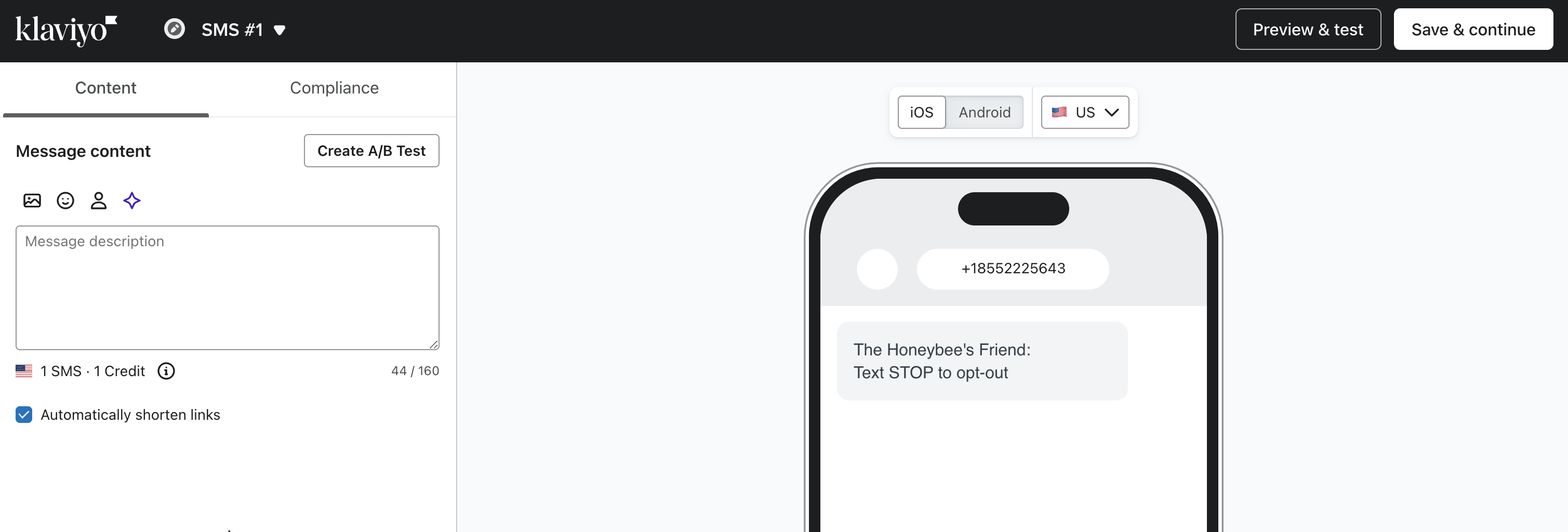
In a Klaviyo campaign or flow email, SMS, or push notification, open the editor and click into the subject line, preheader, or a text block where you want personalisation to appear.
Insert the First Name Tag
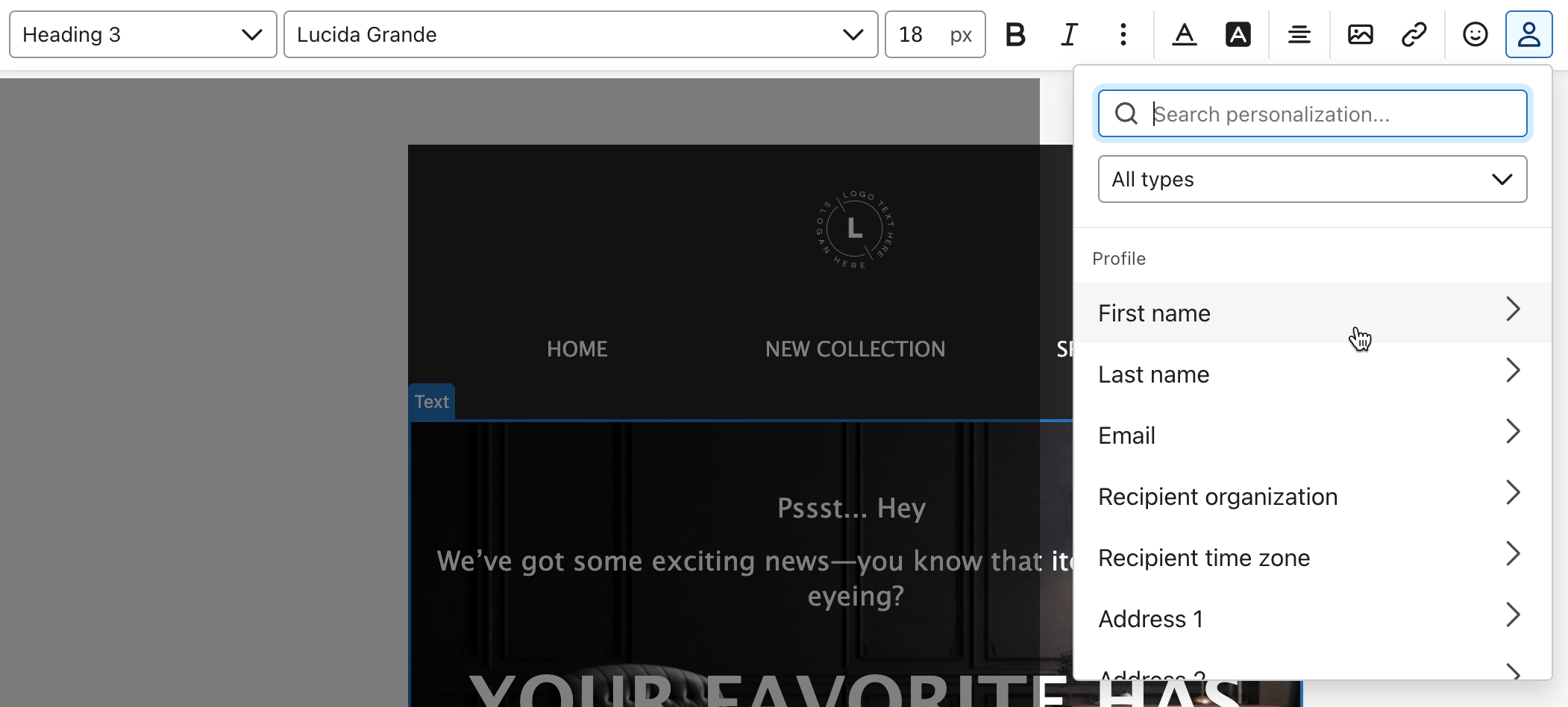
Click the Personalisation icon → select First name. In the Default text field, add a fallback that fits your tone (e.g. “Friend”). Klaviyo generates the correct tag syntax automatically.
Refine with Filters
For manual entry, type the full expression directly into the text field:
{{ first_name|title|default:'Friend' }}
This fixes casing and provides a fallback in one clean step. Always chain |title before |default — the order matters.
Preview with Real Data
Click Preview & Test. For campaigns, choose a real profile. For flow messages, also select the triggering event. Confirm the name renders correctly — and that your fallback appears for profiles with a blank first name field.
Run Inbox Testing (Optional but Recommended)
Use Klaviyo’s Inbox Testing to preview how personalisation renders across different email clients — Gmail, Outlook, Apple Mail — before sending to your full list.
Send a Test Email
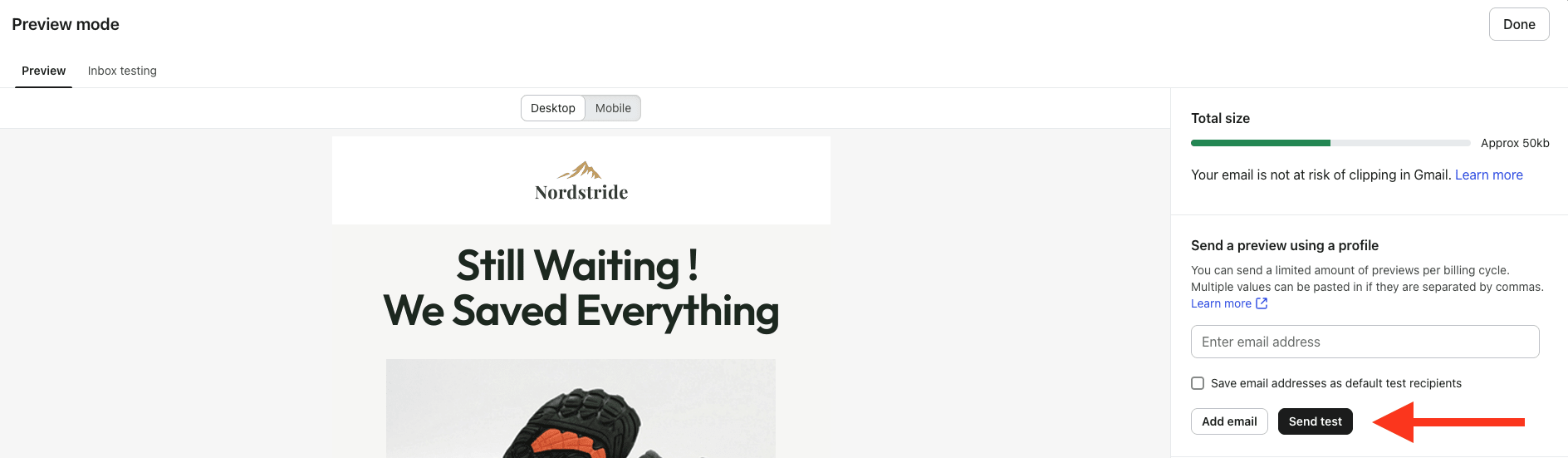
Send yourself and a teammate a live test to check tone, spacing, and name rendering in a real inbox. This is your final check before going live.
Setting Up Fallbacks That Match Your Brand Voice
A fallback is what subscribers see when the first name field is blank. In Klaviyo, you can set it via the Default text field in the UI, or inline with the |default filter. Pick one tone and use it consistently across all messages.
| Tone | Fallback | Example | Best For |
|---|---|---|---|
| Friendly | 'there' |
Hey there — | DTC, lifestyle, casual brands |
| Warm | 'Friend' |
Hi Friend, | Community-driven or wellness brands |
| Premium | 'Valued Guest' |
Dear Valued Guest, | Luxury, high-ticket, hospitality |
| Playful | 'Legend' |
We miss you, Legend. | Win-back, re-engagement flows |
| Neutral | 'you' |
This one’s for you. | B2B, professional tone |
High-Impact Placements for the Klaviyo First Name Tag
Use first-name tags strategically — not on every line. These four placements deliver the highest impact across Klaviyo flows and campaigns.
Troubleshooting Klaviyo First Name Tag Issues
If your first name tag isn’t rendering the way you expect, work through these five common problems and fixes:
First Name field is populated. If it’s blank, collect names via sign-up forms, ensure API events pass first_name, or update missing data through CSV import. Always use a fallback as insurance.{{ first_name|title|default:'Friend' }}first_name — Klaviyo won’t recognise “firstname”, “First Name”, or “name” without exact mapping. Correct the header and re-import the file.A/B Test the Impact of First Name Personalisation
Think of first-name usage as a testable hypothesis: “Adding a name to the subject line increases open rate without harming clicks.” Here’s how to run that test properly in Klaviyo.
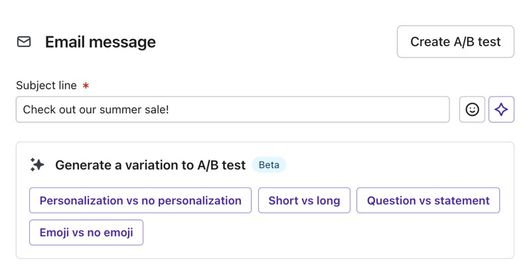
Simple Subject Line A/B Test
How to Run in Klaviyo
- Campaigns: Use built-in A/B Testing — split traffic, choose your KPI (open rate), and declare a winner after reaching statistical significance
- Flows: Use Flow A/B Split to test subject lines and greetings within automated sequences
Best-Practice Guardrails
- Test one variable at a time — don’t change subject line and design simultaneously
- Stick to 2 variations max for clean, readable results
- Ensure adequate sample size before calling a winner
- If lift is marginal or negative, revert to fallback-only — personalisation should help, not distract
Frequently Asked Questions About the Klaviyo First Name Tag
Key Takeaways
- Use clean syntax:
{{ first_name|title|default:'Friend' }}is the safest, most polished production format — chain title before default. - Always set fallbacks: Avoid awkward blanks with the Default text field in the UI or the
|defaultfilter inline. - Capture first names at source: Collect via forms, checkout integrations, CSV imports, or the Profiles API to keep data clean.
- Preview with real data: Validate every tag in the Preview panel and send a test before going live — never rely on a test profile with missing fields.
- Test strategically: Run A/B tests in campaigns and flows to prove open and click lift before scaling personalisation across all sends.
- Match your brand tone: Choose fallbacks that align with your voice — “Friend,” “there,” “Legend,” or “Valued Guest” — and use them consistently.