
Klaviyo Custom Fonts: 8 Steps to Build Branded, High-Impact Emails
Custom fonts make your Klaviyo emails look like your brand — not a template. But here’s the catch: Gmail and Yahoo generally don’t load web fonts, so if you don’t set proper fallbacks, your carefully chosen typeface gets replaced by a default system font that breaks your design. This guide shows you how to do it right.
- Adding Klaviyo custom fonts — Google Fonts, Adobe Fonts (Typekit), and self-hosted URLs
- Applying fonts globally and per block with reliable fallback stacks
- Email client support — what renders where, and what to expect in Gmail
- Performance, accessibility, and sizing guidelines for mobile
- Testing workflows and quick troubleshooting for common issues
- Strategic branding do’s and don’ts for consistent typography
Why Custom Fonts Matter in Klaviyo Emails
Typography influences how quickly people scan, trust, and act. Using your brand font lifts perceived quality and keeps lifecycle messages visually consistent with your website, ads, and social presence. Because many inboxes — including Gmail and Yahoo — don’t load web fonts, you need to plan typography that works in both your brand font and a close web-safe fallback.
Welcome series, post-purchase content, and launches all benefit from typography that mirrors your website — building visual familiarity before subscribers even read a word.
Subscribers subconsciously judge brand credibility by visual quality. Custom fonts reinforce that your brand pays attention to detail — which extends to the product or service itself.
Clear hierarchy and readable sizes (at least 14 px for body text with ~1.5 line height) make your emails scannable — especially on mobile, where most email is now opened.
With the right fallback stack, your design holds up even when Gmail ignores your web font. Good planning means your email is never broken — just slightly different.
Three Ways to Add Custom Fonts in Klaviyo
Klaviyo supports three font sources, all managed from the same Add Font interface inside the email editor or from Content → Images & Brand → Fonts.
use.typekit.com/XXXXX.css). Requires an active Adobe Fonts subscription. Best for premium or brand-specific typefaces.Access-Control-Allow-Origin: *), paste the URL, set name and weight. Cannot upload files directly to Klaviyo.How to Add Custom Fonts in Klaviyo: 8-Step Setup Guide
Follow these steps to add, configure, and test your custom font in Klaviyo’s email editor — including fallback setup so designs hold up in every inbox.
Open a Template and a Text Block
Open or create an email template in Klaviyo. Click into a Text block, or open the Content & Styles tab at the top of the editor to manage fonts at the template level.
Click “Add Font” in the Font Dropdown
In the font dropdown (visible when editing text or in the Styles tab), click Add Font and choose your source: Google Font, Adobe Font, or Import Font.
Add a Google Font
Search for the font by name, choose a close fallback from the dropdown for clients that don’t load web fonts, then click Add Font.
Add an Adobe Font via Typekit CSS URL
Paste your Adobe Fonts kit CSS URL in the format https://use.typekit.com/XXXXX.css, choose a fallback, then click Add Font. An active Adobe Fonts subscription is required.
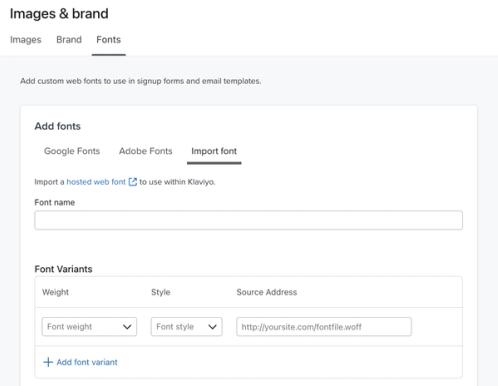
Import a Self-Hosted Font
Host your font file publicly, enable CORS by returning the header Access-Control-Allow-Origin: * from your server, paste the font URL, set the name, weight, and style, then click Add Font.
Apply the Font at Template and Block Level
After adding a font to your account, it appears in the Fonts library and can be applied across templates and sign-up forms. Use the three levels below for precise control:
Set a Web-Safe Fallback Stack
This is the most important step for Gmail and Yahoo users. Always choose a web-safe fallback when adding any custom font — inboxes that don’t load web fonts will show your fallback instead.
font-family: 'Your Brand Font', Arial, Helvetica, sans-serif;
Choose a fallback with similar proportions to your brand font so spacing and line breaks remain stable in Gmail and Yahoo. A font that’s too wide or narrow can break your layout even when the content is correct.
Test Across Inboxes and Mobile Devices
Use Preview & Test → Send test to check rendering on iOS, Android, and desktop with a real send. Then run Inbox Testing inside Klaviyo for multi-client previews across Gmail, Outlook, Apple Mail, and more — without leaving your account.
Email Client Support for Klaviyo Custom Fonts
Not every inbox loads web fonts, so understanding your list’s top clients helps you plan where your brand font renders — and where the fallback appears. See Klaviyo’s overview of fonts in email for their current client support list.
| Email Client | Web Font Support | What to Expect |
|---|---|---|
| Apple Mail (macOS & iOS) | ✓ Supported | Custom fonts render reliably — your brand font will display correctly |
| Samsung Mail | ✓ Supported | Web fonts generally load — test a few weights before relying on them |
| Outlook for Mac | ✓ Supported | Custom fonts render — Outlook for Mac behaves more like Apple Mail |
| Android Mail (native) | ~ Partial | Varies by Android version and device — test across multiple Android versions |
| Gmail (all platforms) | ✗ Not Supported | Gmail ignores web fonts — Roboto is the only exception. Your fallback will display |
| Yahoo Mail | ✗ Not Supported | Yahoo generally strips web font references — your fallback will display |
| Outlook (Windows) | ✗ Not Supported | Outlook Windows uses Word rendering engine — web fonts are not supported |
Performance & Accessibility Best Practices
Custom fonts should never slow the scroll. Keep payloads lean, sizes readable, and design so emails load fast and stay accessible on every mobile device.
Stick to one or two weights (e.g. Regular + Bold). Avoid loading extra italics unless essential — each variant is a separate network request that adds load time.
Use at least 14 px for body text with a line height of ~1.5. Go larger on mobile — 16 px body is safer for smaller screens and reduces strain for older readers.
Aim for at least 4.5:1 contrast ratio for body text. This is especially important for darker backgrounds common in branded email designs. Check with a contrast tool before shipping.
Build one master template with your font sizes and hierarchy locked. Save common sections as Universal content so spacing, sizes, and fonts stay consistent across every campaign.
Troubleshooting Klaviyo Custom Font Issues
If a custom font doesn’t appear, first determine whether it’s a source issue, an email client limitation, or a fallback problem. Work through these common fixes:
Access-Control-Allow-Origin: *. Note: you cannot upload font files to Klaviyo — you must host them externally and import via URL.Access-Control-Allow-Origin: *, then retest in the editor.Strategic Tips for Font-Led Email Branding
Treat fonts as part of your brand system — not decoration. Here’s how to make typography a consistent, recognisable signature across every Klaviyo campaign.
- Mirror your website: Use the same font pairings from your site so emails feel native to your brand — not like a separate channel
- Bold or semibold for headings, regular for body: Keep a clear hierarchy with consistent sizing across all templates
- Limit to two font families: One for display/headings, one for body copy — more than two creates visual noise and slower load times
- Use decorative faces sparingly: Reserve script or display fonts for short headlines only. Keep body copy in a highly readable family
- Match fallback proportions: Choose a fallback with similar letter-spacing to your brand font so line breaks don’t shift when Gmail substitutes it
- Standardise with a master template: Save your font hierarchy as a master template and shared Universal content sections — this keeps sizing consistent across every campaign and flow
Frequently Asked Questions About Klaviyo Custom Fonts
Key Takeaways
- Three ways to add fonts: Google Fonts, Adobe Fonts (Typekit CSS), or self-hosted Import Font — all saved to your Fonts library for reuse.
- Always set fallbacks: Gmail and Yahoo won’t load web fonts — a close web-safe fallback like Arial keeps your layout intact everywhere.
- Apply at multiple levels: Set fonts in template Styles for global consistency, then override per-block including buttons and product blocks.
- Test before every send: Use Inbox Testing and Preview & Test to validate rendering across all major clients, not just the editor preview.
- Stay readable on mobile: Minimum 14 px body text, ~1.5 line height, and 4.5:1 contrast ratio for body copy.
- Host correctly: For imported fonts, enable CORS on your server — a missing header silently breaks the font without throwing an error.