
Klaviyo Product Feed: 9 Tips to Power Dynamic Emails That Convert
Ever wondered how brands send emails with perfectly timed product suggestions — like the exact pair of trainers you viewed yesterday? That’s your Klaviyo product feed at work. It’s the live link between your store and Klaviyo, keeping product names, images, prices, and availability accurate — and powering every dynamic email block without manual updates.
- What the Klaviyo product feed is and why it matters for e-commerce
- How to set it up step-by-step for Shopify, WooCommerce, BigCommerce, or custom stores
- Ways to optimise feeds for higher click-through and conversion rates
- Troubleshooting common sync and data issues
- Advanced strategies to personalise at scale with segmentation
What Is the Klaviyo Product Feed?
A product feed is the data bridge between your store and Klaviyo. It syncs item names, prices, images, inventory levels, and categories in real time — so your emails always reflect what’s actually in your store right now, not what was there when you last clicked “send.”
Prevents mismatched prices, outdated images, or broken links that damage customer trust mid-campaign.
Powers abandoned cart, browse abandonment, cross-sell, upsell, and replenishment flows with zero manual product uploads.
Remove manual product curation from your workflow entirely — feeds update themselves as your catalogue changes.
Enable real-time product recommendations in email and SMS based on each customer’s browsing and purchase behaviour.
How to Set Up Your Klaviyo Product Feed
Follow these steps to configure your feed and start powering dynamic email blocks with live store data. This applies to Shopify, WooCommerce, BigCommerce, and custom catalogue integrations.
Navigate to Content → Products in Klaviyo
Switch to the Product Feed tab, then click Create Product Feed.
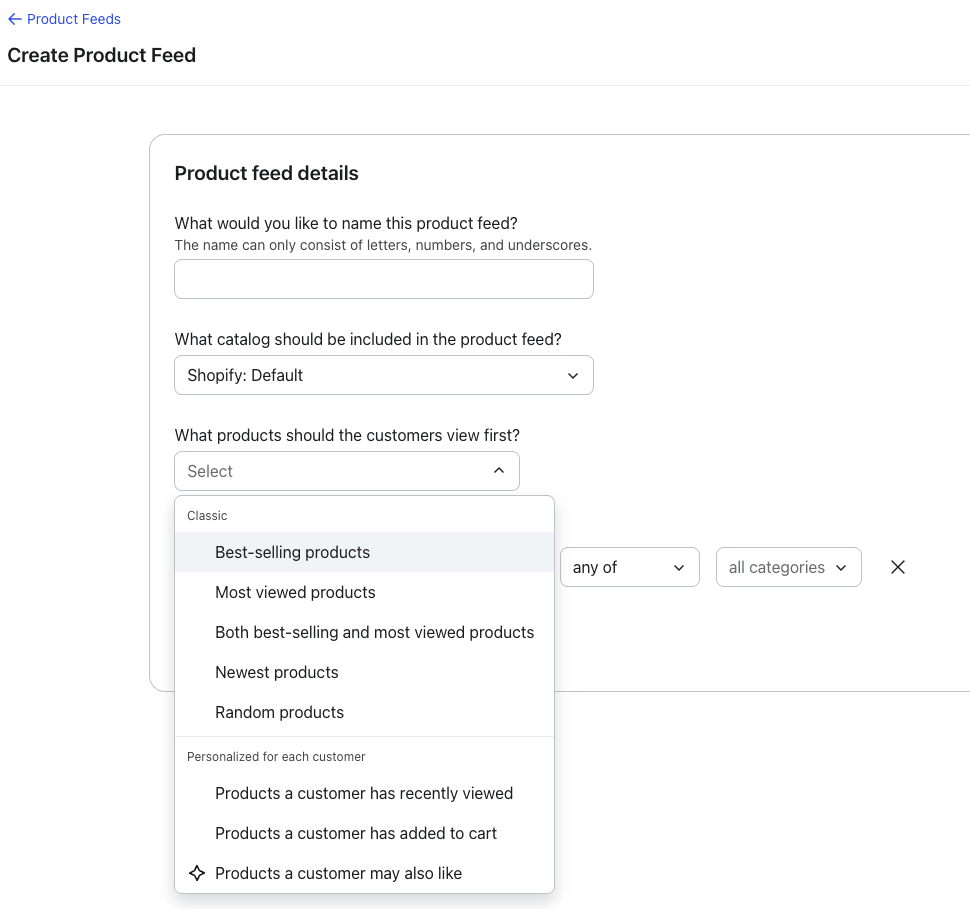
Name Your Feed
Give it a clear, descriptive name. No spaces, no special characters, and no leading underscores — Klaviyo uses this name to identify the feed in your templates.
Select Your Catalogue
If you have multiple catalogues, pick the one you’re targeting. If you only have one, Klaviyo will auto-select it.
Choose Product Priority
Select how products are ranked in the feed. Classic options include Best-selling and Newest. Personalised options include Recently Viewed and Added to Cart — both use up to the last 90 days of customer behaviour.
Set a Personalised Fallback
If you chose a Personalised feed type, set a fallback for customers with limited behavioural history — such as Best-selling. This ensures the feed always has something relevant to show, even for new subscribers.
Apply Filters
Optionally add filters to refine what products appear: Category includes/excludes (supports multiple categories), Stock level (min or max — leave one blank to default to zero or unlimited), and Price (min or max). You can stack multiple filters to fine-tune recommendations.
Save and Verify
Click Save Product Feed. To edit later, go to Content → Products → Manage Product Feeds. Always preview your block with a real customer profile before going live.
Shopify: Enable Behavioural Tracking
For personalised feeds to work on Shopify, you need to enable onsite tracking so Klaviyo receives Viewed Product and Added to Cart events:
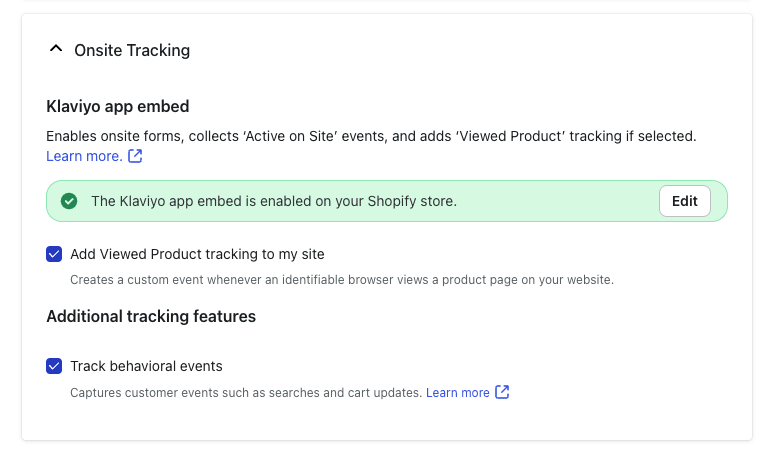
With behavioural tracking active, Klaviyo can populate Recently Viewed and Added to Cart recommenders accurately. Without it, personalised feeds will fall back to your default (e.g., Best-selling) for every customer.
How Dynamic Product Blocks Use Your Feed
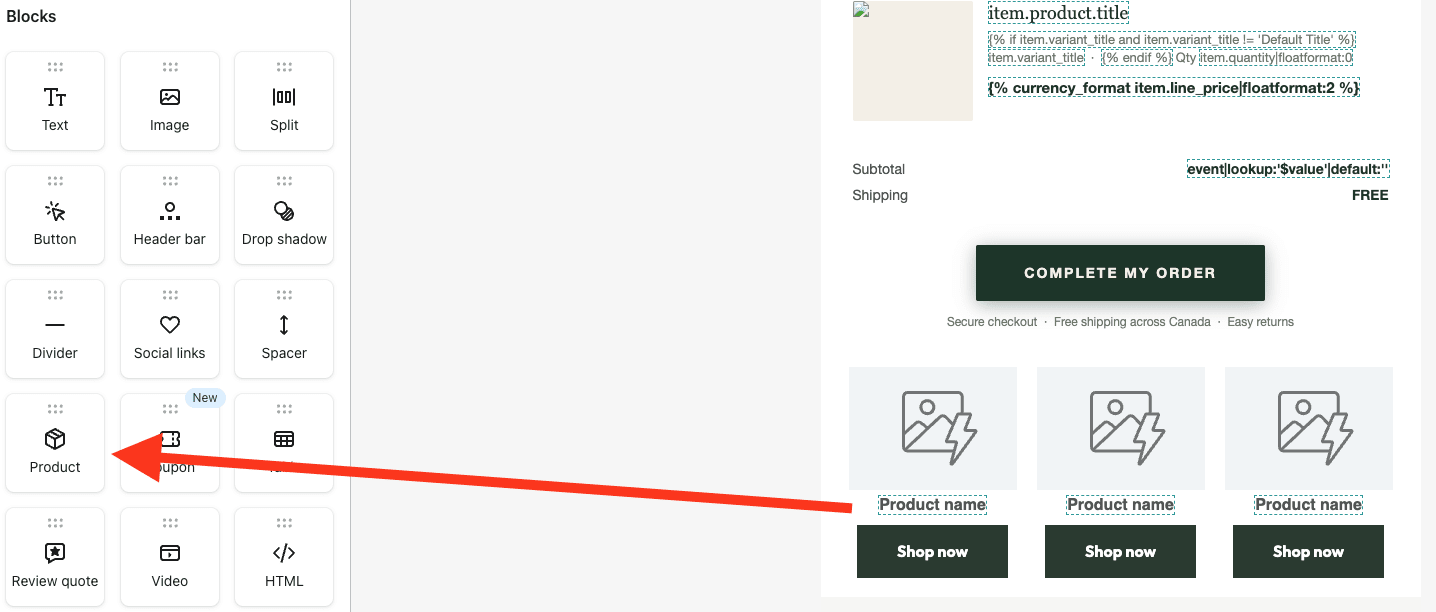
Dynamic product blocks pull live data from your feed and render it inside emails at send time. When your catalogue updates — price changes, new arrivals, stock adjustments — the block reflects the change automatically.
Segmentation Strategies with Product Feed Data
Your product feed is most effective when paired with Klaviyo’s segmentation engine. Combining behavioural and product-level data lets you deliver offers that feel curated — not generic.
Feed Optimisation for Better Click-Through Rates
Even small tweaks to your product feed setup create measurable lifts in engagement and revenue. Test these systematically — and always look beyond clicks to ensure CTR lift translates to actual revenue.
| What to Test | Options | Why It Works |
|---|---|---|
| Tiles per block | 3 vs 4 products per row | Fewer tiles improve focus; more tiles showcase variety — test by audience segment |
| Product priority | Best sellers vs new arrivals | Best sellers build social proof; new arrivals trigger curiosity — use by funnel stage |
| Title length | Full name vs shortened version | Shorter titles improve scannability on mobile and reduce decision friction |
| UTM tagging | Campaign-level UTMs on all feed links | Ensures clean attribution when comparing Klaviyo data with GA4 reporting |
| Price display | With vs without sale price shown | Showing the original + sale price side-by-side can increase urgency |
Advanced Product Feed Tactics
Once your basic feed runs smoothly, fine-tune it for higher ROI and more precisely targeted recommendations. These tactics align feed data with lifecycle triggers for smarter, more profitable campaigns.
- Tag seasonal items: Label products with tags like
HolidayorSummerto power timely promotions that automatically surface the right products at the right time of year - Category-specific feeds: Build dedicated replenishment flows for recurring purchases — coffee, skincare, supplements — using category filters to keep products hyper-relevant
- Use metadata attributes: Tap into fields like
gender,style, orroutine_stepto create hyper-personalised blocks that feel bespoke - Exclude low-margin SKUs: Use price and category filters to keep focus on products that maximise profit — not just fill the block
- Exclude out-of-stock items: Apply stock-level filters to ensure customers never see a product they can’t actually buy today
routine_step attribute (cleanser, moisturiser, serum). Their post-purchase flow then dynamically recommends the next step in the customer’s routine — driving logical repeat purchases without any manual curation.
Troubleshooting Klaviyo Product Feed Issues
Even well-configured feeds can break due to sync errors, missing schema, or mismatched data. Use this checklist to diagnose and fix issues fast.
| Issue | Where to Check | Fix |
|---|---|---|
| Products not appearing in block | Content → Products → sync status | Confirm last sync timestamp; re-trigger sync from integration settings |
| Out-of-stock items showing in emails | Feed filter settings | Add a stock level filter with minimum of 1 to auto-exclude unavailable items |
| Wrong prices or images rendering | Catalogue item in Klaviyo | Force a manual catalogue sync from your integration (Shopify/WooCommerce) settings |
| Personalised feed defaulting to fallback for everyone | Integration logs → event tracking | Ensure Viewed Product and Added to Cart events are firing from your site |
| Feed schema not reading correctly | First item in your feed | Klaviyo reads the first item to detect schema — fix any missing fields there first |
| Block renders blank in preview | Preview panel → test with real profile | Always preview with an actual customer profile, not a test profile without purchase history |
Tracking & Improving Feed Performance
A product feed should earn its place in your campaigns. Monitor these metrics regularly to prove ROI and continuously improve content.
Frequently Asked Questions About Klaviyo Product Feeds
Key Takeaways
- Live data sync: Klaviyo product feeds pull names, prices, and images automatically from your store — keeping every email accurate without manual work.
- Dynamic personalisation: Feeds power abandoned cart, browse abandonment, upsell, and replenishment flows with real-time product data per customer.
- Smart segmentation: Combine feeds with behavioural segments to deliver curated, relevant offers — not generic product grids.
- Optimisation wins: Test block size, product priority, and title length to systematically lift CTR and revenue per recipient.
- Troubleshooting ready: Use Content → Products, integration logs, and the preview panel to diagnose and fix sync or data issues fast.
- Pro-level tactics: Tag products seasonally, build category-specific feeds, and exclude low-margin SKUs for sharper performance at scale.