


A Klaviyo price drop flow emails people automatically when an item they looked at, or left in checkout, gets cheaper. You choose how big the drop must be and how far back to look. Klaviyo then contacts the shoppers who showed interest and have not bought yet. This guide covers what you need before you build it, the settings to pick, and how many people it can actually reach.
Short answer: Build it from Flows > Create flow > Build your own, pick the Price drop trigger, set a threshold (for example 10%), choose “Viewed the product” and keep the 30-day window. Send the first message right away, with no delay. At Sendora Lab we check product-view tracking first, because the flow can only reach identified people who viewed the item.
What is a Klaviyo price drop flow?
It is a flow that starts when a product in your synced catalogue gets cheaper. A flow is an automated series of messages that Klaviyo sends when something happens, such as a sign-up or, here, a price change.
Klaviyo compares the new price with the old one. If the drop meets your threshold, it finds everyone who viewed the item or started checkout with it during your chosen period. People who already bought the item in that period are left out, and so is anyone who saw it when it was already at the lower price. Klaviyo checks these conditions again before each message sends.
It sits next to two flows you may already run: the Klaviyo back in stock flow, which reacts to inventory, and the browse abandonment flow, which reacts to a visit. A price drop flow reacts to your pricing.
What you need before you build it
You need a synced catalogue with price and inventory data, product events that carry the price and product ID, and an item that is in stock. Without these, the trigger never fires.
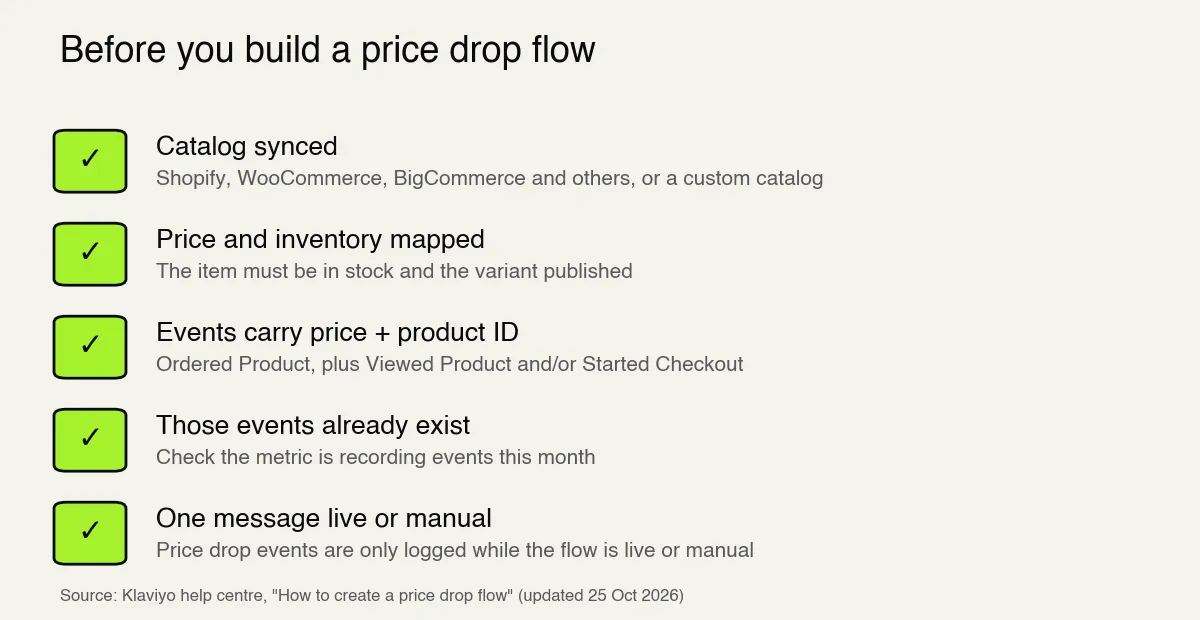
According to Klaviyo’s price drop guide (updated 25 October 2026), the trigger works with catalogues from Shopify, WooCommerce, BigCommerce, Magento 2, PrestaShop and Salesforce Commerce Cloud, or a custom catalogue feed. It only fires for items that are in stock, and not for unpublished variants.
Klaviyo also needs Ordered Product events, plus Viewed Product or Started Checkout events, that include price and product ID. Those events must already exist in your account. If product views are missing, fix that first: our guide to Viewed Product not tracking walks through the usual causes.
One detail catches people out. Klaviyo only logs a price drop event while at least one message in the flow is live or manual. You cannot build the flow, wait for a sale, and look at test data afterwards. Set a message to manual first if you want real preview data.
How to set up a Klaviyo price drop flow
Create a new flow, choose the Price drop trigger, set the threshold, profile requirement and window, then add your messages straight after the trigger.
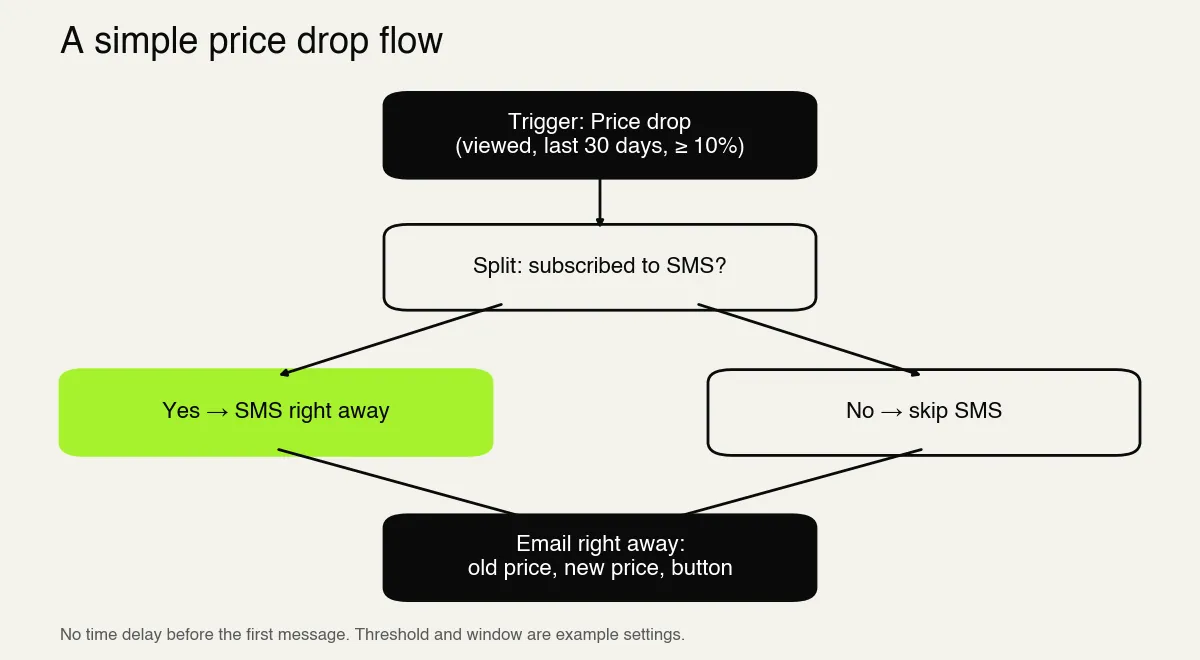
- Go to Flows > Create flow > Build your own and pick the Price drop trigger.
- Set the drop as an amount or a percentage. Changes only apply to drops that happen after you save.
- Under profile requirements, choose who qualifies: started checkout, viewed the product, or both.
- Optionally change the time period. The default is 30 days; you can pick anything from 1 to 90 days.
- Add an email directly after the trigger. Klaviyo advises against a time delay here, because the point is to tell people as soon as the price changes.
- For SMS, add a conditional split after the trigger that checks SMS consent, and send texts only on the “yes” branch.
In the email, show the old price and the new price side by side. Klaviyo’s price drop event can include original_price and reduced_price. Copy the exact variable names from the Preview & test panel rather than typing them, since a typo leaves a blank where the price should be.
Which trigger settings to choose
For most stores, start with “Viewed the product”, the default 30-day window and a threshold big enough that the customer notices. Then adjust once you see the price drop report.
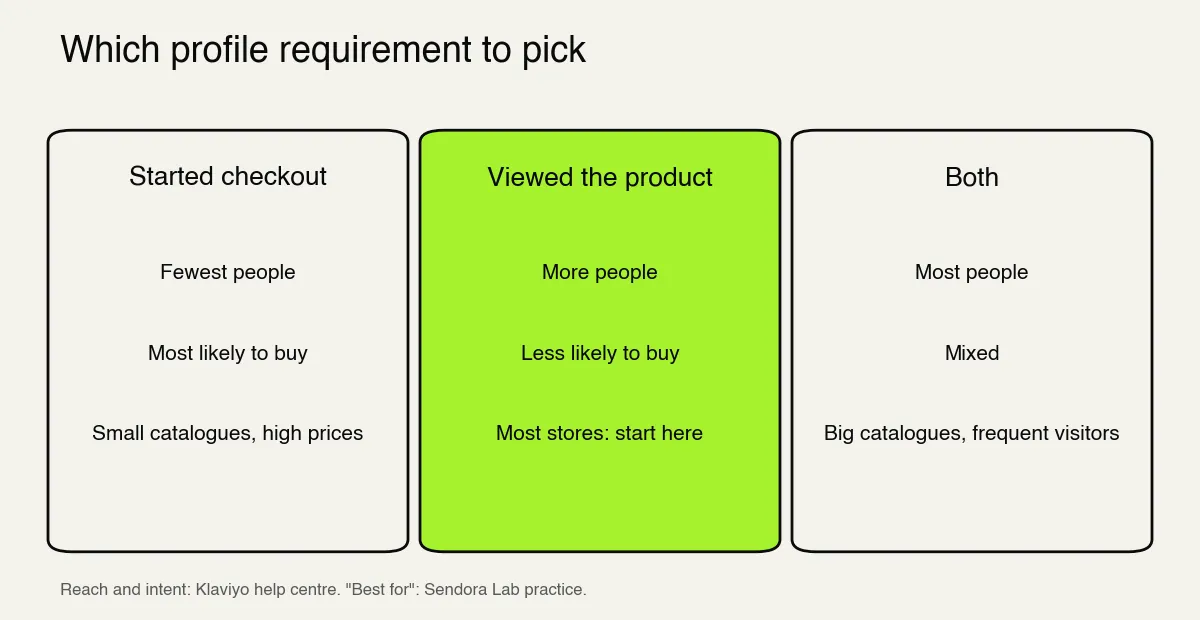
Klaviyo describes the trade-off plainly. “Started checkout” reaches the fewest people but they are more likely to buy. “Viewed the product” reaches more people who are less likely to buy. “Both” pulls in both groups. In our work, checkout-only audiences are often too small to matter, so we start with viewers.
For the threshold, our rule of thumb is that a drop worth an email is a drop the customer would notice on the product page. A few cents off triggers a message that looks like a mistake. Klaviyo sets no minimum, so this choice is yours.
Watch out during storewide sales. Every product that drops can trigger the flow, so one sale can put the same person in line for several emails. Keep Smart Sending on, which limits how many messages someone gets in a set period, and check that your sale campaign and the flow are not saying the same thing on the same day.
How many people will a price drop flow reach?
Fewer than most people expect. The flow can only reach identified people (profiles Klaviyo can tie to an email or phone number) who viewed or started checkout with the exact item that dropped.
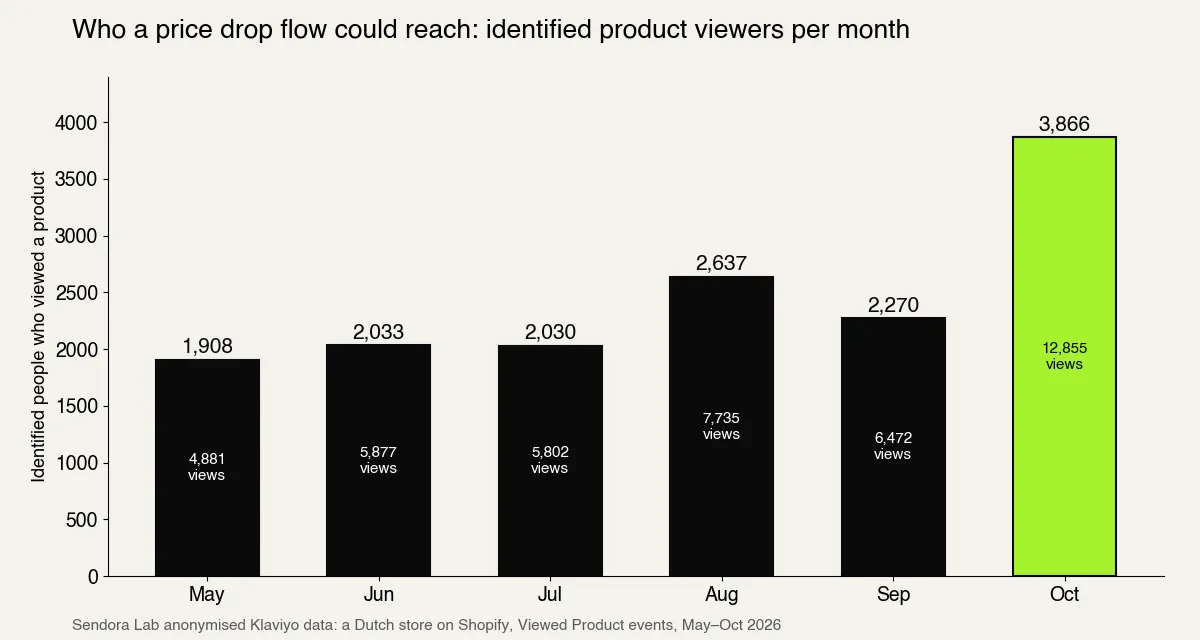
In Sendora Lab’s anonymised Klaviyo data from a Dutch store on Shopify (May–October 2026), between 1,908 (May) and 3,866 (October) identified people viewed at least one product each month. In October, those 3,866 people logged 12,855 product views between them.
That monthly number is a ceiling, not a forecast. From it, the flow then removes everyone who did not view the specific product that dropped, anyone who bought it, and anyone the drop missed because the item went out of stock. What is left for one product is usually a small group, which is why the flow works best for stores that drop prices on many items, or often.
It also explains something we found when we checked: on 25 November 2026, none of the 16 client Klaviyo accounts we checked for this post had a price drop flow. Most of those stores run sales as campaigns to the whole list. For them, the price drop flow is a useful extra for regular markdowns, not a replacement for the sale email.
Once the flow is live, open the trigger and click “View price drop report”. It lists each drop with SKU, product title, original price, reduced price, timestamp and whether it sent, and it can be exported as a CSV. It only includes drops after the flow was set up.
Conclusion
A Klaviyo price drop flow is quick to build, but it only works when the catalogue, product events and stock data are right. Start with “Viewed the product”, the 30-day window and a threshold customers will notice. Send the first message straight away, and keep Smart Sending on during sales. Then use the price drop report to see how often it really fires.
If you want price drop, back in stock and browse flows set up and checked against your own data, see our Klaviyo email marketing service.
FAQ
Does the Klaviyo price drop flow work with WooCommerce?
Yes. Klaviyo lists WooCommerce among the supported catalogues, along with Shopify, BigCommerce, Magento 2, PrestaShop, Salesforce Commerce Cloud and custom catalogue feeds.
Should I add a delay before the first price drop email?
No. Klaviyo recommends sending the first message straight after the trigger, so customers hear about the lower price as soon as it changes.
Will someone who already bought the item get the email?
No. Anyone who bought the item within the trigger’s time period is left out, whether they paid full price or a discounted price.
Why is my price drop flow not sending?
Common causes are an out-of-stock item or unpublished variant, product events missing price or product ID, or no message set to live or manual when the price changed.
Want this set up in your Klaviyo account?
A free 30-minute audit, your account open on screen.
Book a free audit