


A Klaviyo private API key is a secret key, starting with pk_, that lets a server or app read and write data in your Klaviyo account. You create it under Settings > API keys, you can only see it once, and you should treat it like a password.
This guide covers where to find it, how it differs from the public key, which scopes to pick, and when an app should use OAuth instead.
Short answer: Use the private API key only on a server, never in website code. Give each app its own key with the fewest scopes it needs, store it in a password manager, and delete it when the app goes. At Sendora Lab we also check the account’s metric list for anything labelled “API”, so we know what is writing to the account.
Public vs private API key in Klaviyo
The public key identifies your account and is safe to share; the private key unlocks your data and must stay secret.
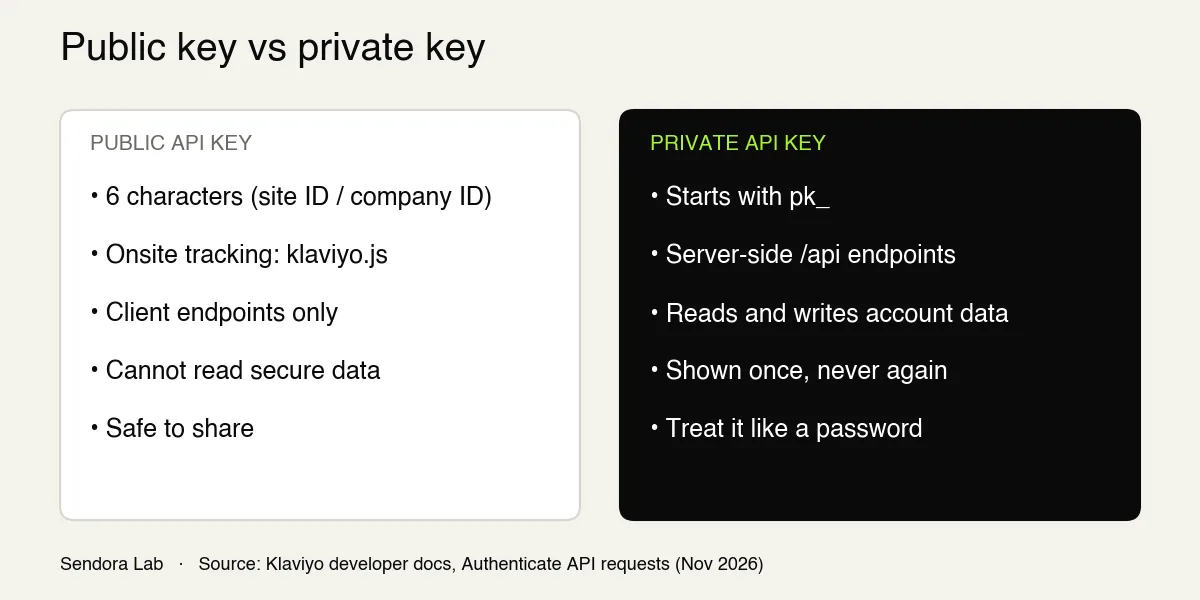
The public API key is the 6-character code Klaviyo also calls your site ID or company ID. It goes into the onsite tracking snippet (klaviyo.js) and the client endpoints, and Klaviyo says it “cannot be used to access secure data”. A private key starts with pk_ followed by a longer string, and it authenticates every server-side /api request with the header Authorization: Klaviyo-API-Key your-private-api-key, according to Klaviyo’s authentication docs.
Klaviyo lets you create several private keys. That is useful: one key per app means you can remove one app without breaking the others.
How to create a Klaviyo private API key
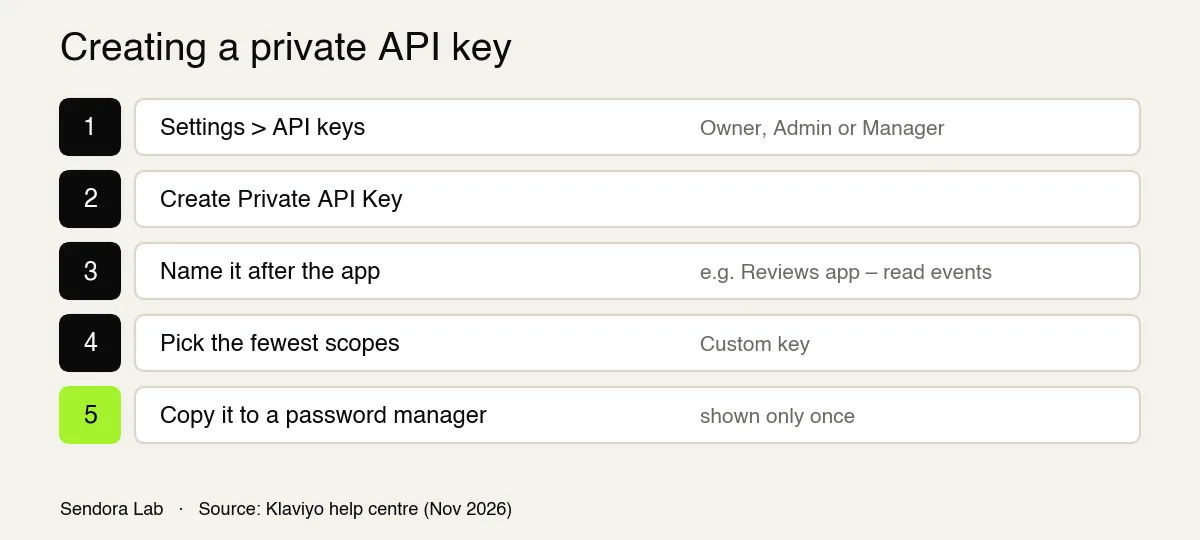
Go to Settings > API keys, choose Create Private API Key, pick the scopes and copy the key straight away.
- Click your organisation name in the bottom left, then Settings.
- Open API keys and click Create Private API Key.
- Name it after the app that will use it, for example “Reviews app – read events”.
- Pick the scopes (next section) and create the key.
- Copy the full key into a password manager. Klaviyo shows it only on that confirmation page.
Only Owners, Admins and Managers can create, clone or delete private keys, per Klaviyo’s help article on private API keys. If you lose a key, you cannot look it up again; create or clone a new one. A clone gets the same scopes but a different key value.
Klaviyo API key scopes: read-only, full or custom
Pick a Custom key with only the scopes the app needs; use Full Access only when the app really writes across the account.
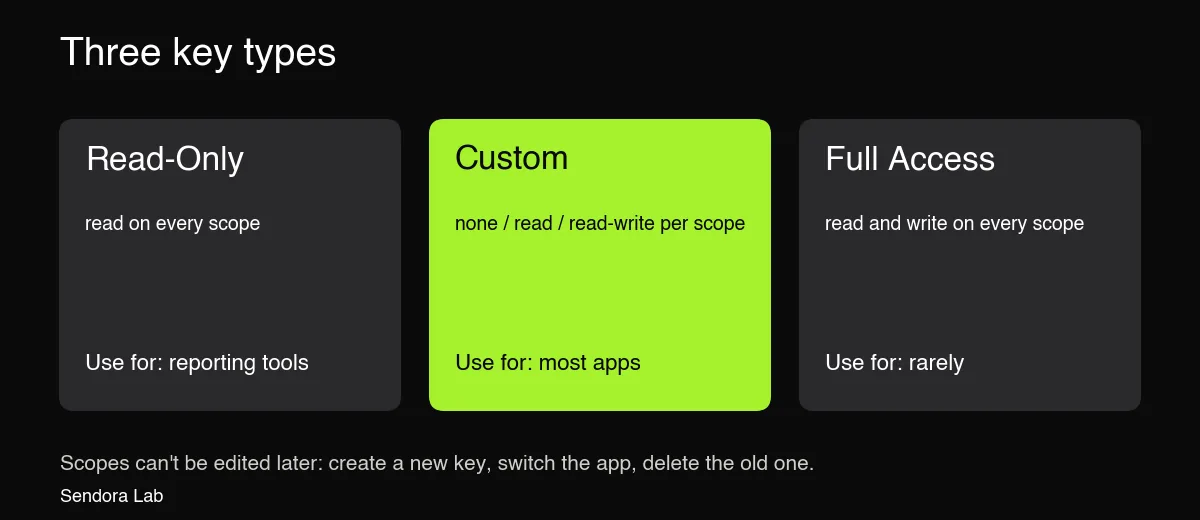
A scope is one permission area, such as profiles, lists, events or campaigns. Klaviyo offers three types:
| Key type | Access | When to use it |
|---|---|---|
| Read-Only | Read on every scope | Reporting tools and dashboards |
| Custom | No access, read or read/write per scope | Most apps: give only what they need |
| Full Access | Read and write on every scope | Rarely; only a trusted, broad integration |
You cannot edit a key or add scopes after creating it. To change access, create a new key with the right scopes, move the app over, check it works, then delete the old key. This is also how you rotate a key you think has leaked.
Private API key or OAuth?
If you are building an app for other Klaviyo accounts, use OAuth; a private key is for your own account and your own scripts.
Klaviyo recommends OAuth for tech partners because it adds security, better rate limits and a path into the App Marketplace, which requires OAuth. OAuth access tokens last about an hour and use Authorization: Bearer instead of the private key header, as described in Klaviyo’s OAuth guide. Apps that support OAuth let you click “Connect” rather than paste a key; our guide to Klaviyo integrations for Shopify covers how to check each one.
A private key still makes sense for your own server sending custom events through the Klaviyo API, a data warehouse sync, or an older app that asks for one.
Check what is using the API in your account
Open your metrics list in Klaviyo and look at each metric’s source: anything labelled “API” came in through Klaviyo’s API, not a built-in integration like Shopify.
In Sendora Lab’s anonymised Klaviyo data from a Hong Kong–based online store on Shopify (metric list read on 22 November 2026), 25 metrics existed: 12 from Klaviyo itself, 11 from Shopify and 2 labelled “API”. The two API metrics were Active on Site and Viewed Product, which are the event names Klaviyo’s onsite tracking snippet sends with the public key. Viewed Product appeared twice, once from Shopify and once from the API.
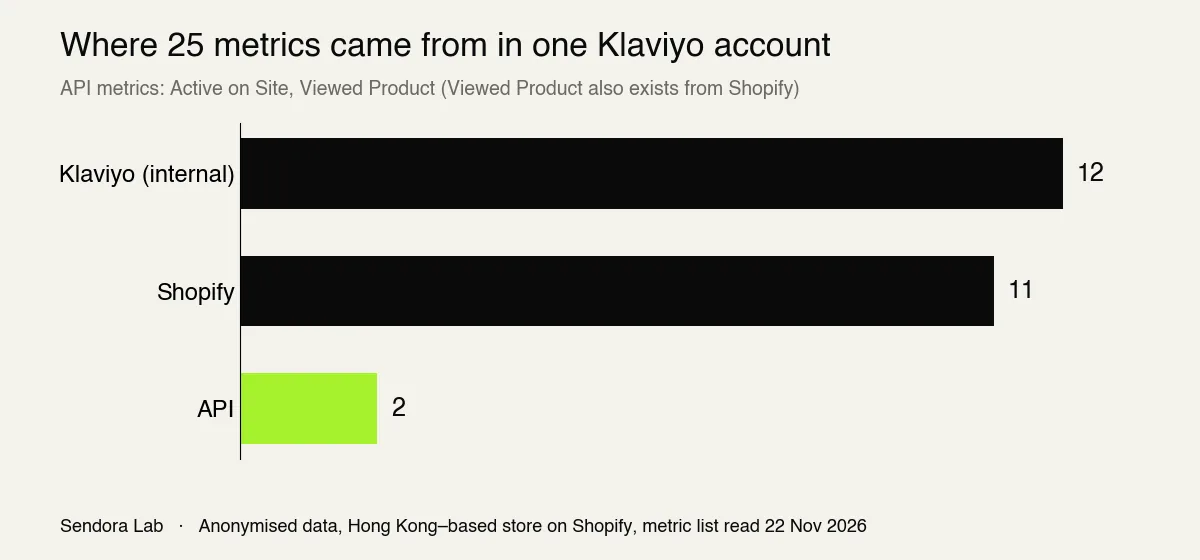
So an “API” label does not tell you which key sent the data. Match each API metric to a tool you know: onsite tracking, your own server or an app. If you cannot place one, find the key it uses and delete the keys nobody owns. Two metrics with the same name, like the Viewed Product pair, are worth checking before you build a flow on one of them. Our Klaviyo audit checklist covers this in a wider review.
Conclusion
A Klaviyo private API key is the master key to your account data. Keep it on servers only, one key per app, with the fewest scopes, and delete keys you no longer need. If you want someone to review your keys, integrations and flows, Sendora Lab’s Klaviyo email marketing service starts with exactly that kind of audit.
FAQ
Where do I find my Klaviyo private API key?
Under Settings > API keys. You can see the key’s name there, but not the full key: Klaviyo shows it only once, when you create it. If it is lost, create a new key.
What is the difference between Klaviyo’s public and private API key?
The public key is your 6-character site ID, used in onsite tracking and safe to share. The private key starts with pk_, reads and writes account data, and must stay secret.
Can I change the scopes of an existing private API key?
No. Create a new key with the right scopes, move the app to it, then delete the old key.
Should my app use a private API key or OAuth?
Apps used by other Klaviyo accounts should use OAuth, which Klaviyo requires for its App Marketplace. A private key fits your own scripts and servers.
Want this set up in your Klaviyo account?
A free 30-minute audit, your account open on screen.
Book a free audit