


The Klaviyo AI segment builder turns a plain sentence, such as “engaged in the last 30 days and never ordered”, into segment conditions you can save. It is quick and usually close, but it drafts the logic for you, so you still check every condition group, time window and consent rule before you send to it. This guide shows how to use it, how to word prompts, and what to check, with real segment sizes from a store we work on.
Short answer: In Klaviyo, go to Lists & segments, create a segment and type a sentence in the condition box, then pick “Define with AI”. Or describe the audience to Composer, Klaviyo’s AI agent. At Sendora Lab we treat the result as a draft: we read the AND/OR groups, add an email consent condition, and compare the profile count with segments we already trust.
A quick definition first. A segment is a group of profiles that Klaviyo keeps up to date from rules, so people join and leave on their own. A profile is one person in your account, with their properties, events and consent.
How to use the Klaviyo AI segment builder
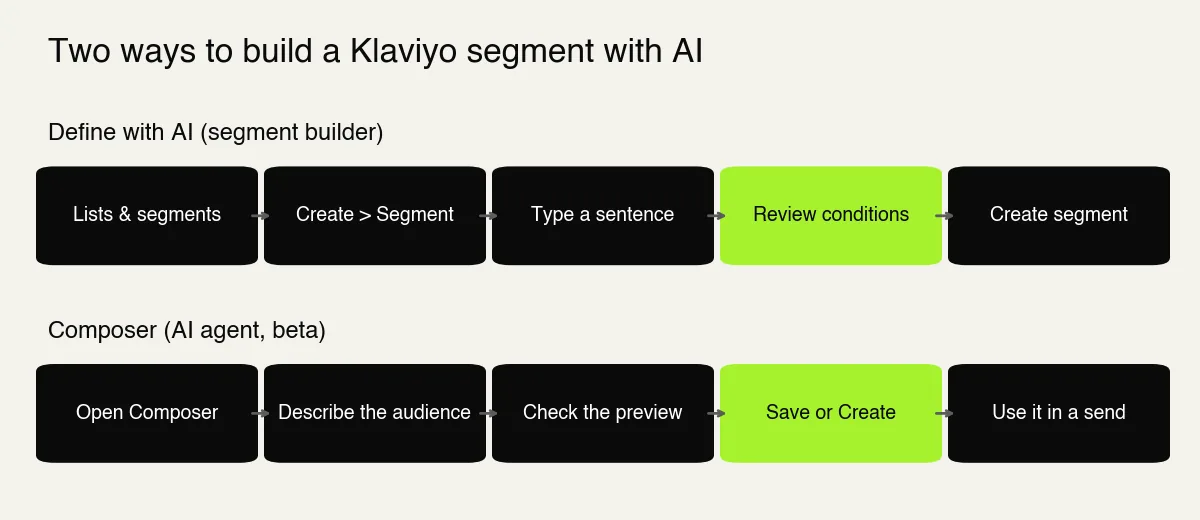
There are two ways in: “Define with AI” inside the segment builder, and Composer, Klaviyo’s AI agent that drafts segments from a chat. Both build conditions from data you already have; neither sends anything when you save.
Define with AI in the segment builder
- Go to Audience, then Lists & segments, and click Create, then Segment.
- Name the segment.
- Type a sentence that describes the audience in the condition box.
- Click the text under “Define with AI” or press Enter.
- Review the conditions it made: metrics, time frames and the AND/OR connectors. Edit any condition by hand, then click Create segment.
Two limits from Klaviyo’s help article on defining segments with AI (as of November 2026): it needs a paid Klaviyo account, and it is not available for accounts hosted in the EU. If you see a partial generation message, some conditions are missing.
Composer
In Composer you describe who to include, what they did or did not do, and over what period. It shows a preview with the name, the conditions and, when available, a profile count, and you save it yourself. Klaviyo’s guide to creating segments with Composer notes it can only use properties, metrics and consent data you already have, and that anything you leave out of the prompt, Composer decides for you.
How to write prompts the AI reads correctly
Write one full sentence that names three things: consent, behaviour and time window. Short labels such as “VIPs” or “engaged people” leave the AI to guess your rules.
- Say the consent. “Profiles who can receive email marketing and…” Klaviyo’s own segments guide warns that segments do not need opt-in rules to add people.
- Name the event. “Clicked an email” or “started checkout”, not “showed interest”.
- Give every window. “In the last 30 days” for engagement and “ever” or “in the last 30 days” for orders. These two give very different groups.
- Say what to leave out. “…and has never placed an order” or “…and has not bounced”.
A prompt we would use: “Profiles who can receive email marketing, opened or clicked an email in the last 30 days, and have never placed an order.” If the result is wrong, Klaviyo suggests changing the prompt and generating again rather than fixing conditions one by one.
Check the logic before you save
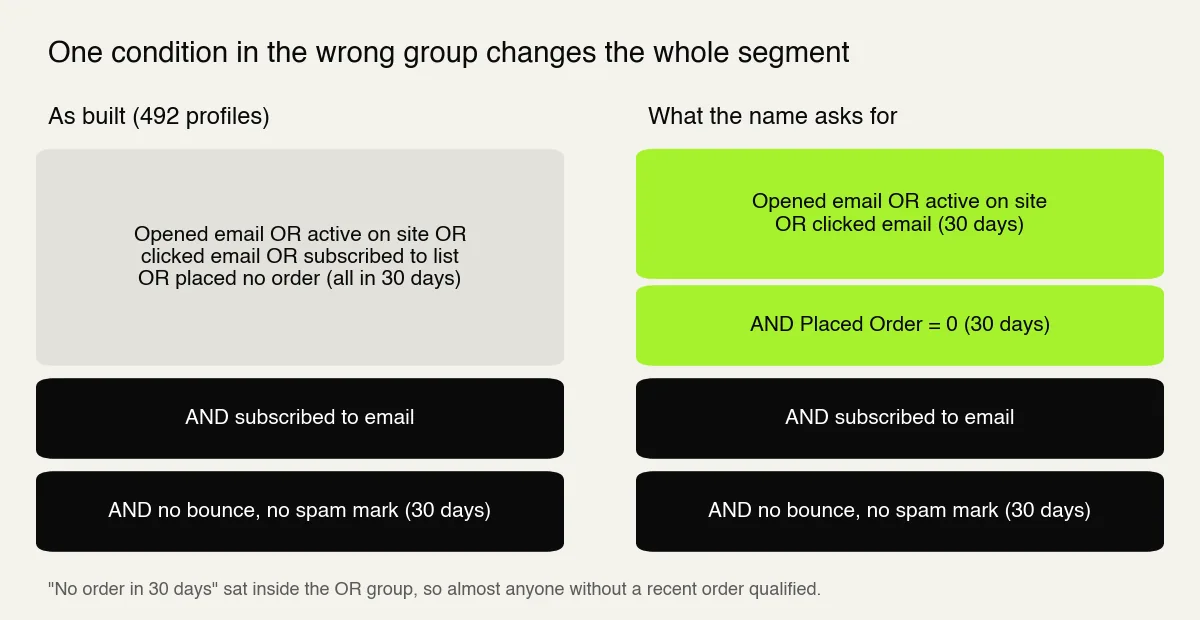
Read the conditions, not the name. The most common error we see, by hand or by AI, is one condition in the wrong group, which quietly turns an AND into an OR.
In Klaviyo, conditions in different groups must all be true (AND), while conditions inside one group need only one to be true (OR). A single misplaced condition can let in almost everyone.
What a misplaced condition looks like in real data
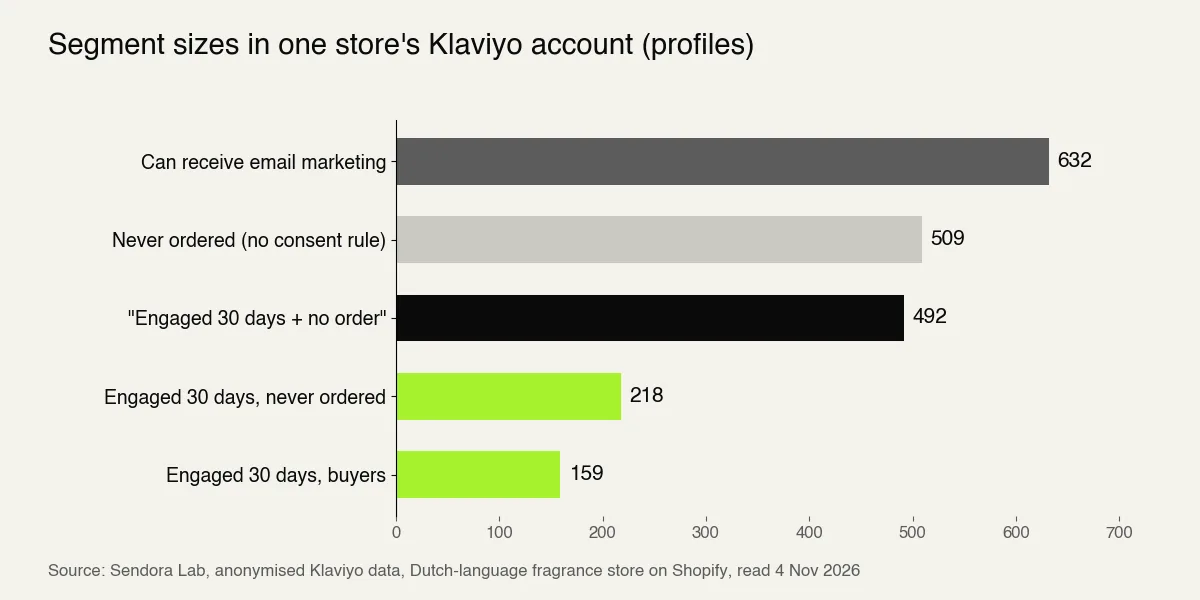
In Sendora Lab’s anonymised Klaviyo data from a Dutch-language fragrance store on Shopify (segment sizes read on 4 November 2026), a segment named “engaged in 30 days with no order” held 492 profiles. Its first group was: opened an email OR was active on site OR clicked an email OR subscribed to a list OR placed no order, all in the last 30 days. Because “placed no order” sat inside that OR group, anyone without a recent order passed that group, engaged or not.
The profile counts gave it away. The same account had 632 profiles who could receive email marketing, a stricter engaged segment for non-buyers with 218 profiles and an engaged-buyers segment with 159. A segment that claims to be “engaged” and is far bigger than both engaged segments, and close to the whole emailable audience, needs a second look.
The checklist we run
- Consent: is there a “can receive email marketing” condition joined with AND? In the same account, a “never ordered” segment with 509 profiles had no consent rule at all. Fine as a filter, not as a send list.
- Groups: does each “and” in your sentence sit in its own group?
- Windows: does every metric have the time frame you meant, such as 30 days or all time?
- Size: does the count sit sensibly next to segments you trust, such as your engaged segment? A count of zero, or one close to your whole list, both mean something is off.
- Names: no two segments with the same name. This account had two “engaged 30 days (buyers)” segments with the same rules.
Conclusion
The Klaviyo AI segment builder saves time on the first draft, and for simple audiences it is often right. Treat what it builds as a draft: write a full sentence with consent, behaviour and time window, then read the groups and compare the count with segments you trust. For bigger audience work, such as RFM segments, the same checks apply. If you want a second pair of eyes on your segments and flows, see our Klaviyo email marketing service.
FAQ
Where is the AI segment builder in Klaviyo?
In Audience, Lists & segments, create a segment and type a sentence in the condition box, then choose “Define with AI”. You can also ask Composer, Klaviyo’s AI agent, to draft a segment.
Is the Klaviyo AI segment builder free?
Klaviyo’s help centre says “Define with AI” needs a paid Klaviyo account and is not available for accounts hosted in the EU (as of November 2026).
Does an AI-built segment only include subscribers?
Not unless you ask for it. Segments do not need opt-in rules, so add “can receive email marketing” to the prompt and check the condition is there.
Can I edit a segment after the AI builds it?
Yes. You can change any condition by hand in the segment builder, or delete the conditions and run a new prompt.
Does saving a segment send anything?
No. Saving only creates the segment. It is not added to a campaign or flow until you choose it there.
Want this set up in your Klaviyo account?
A free 30-minute audit, your account open on screen.
Book a free audit