


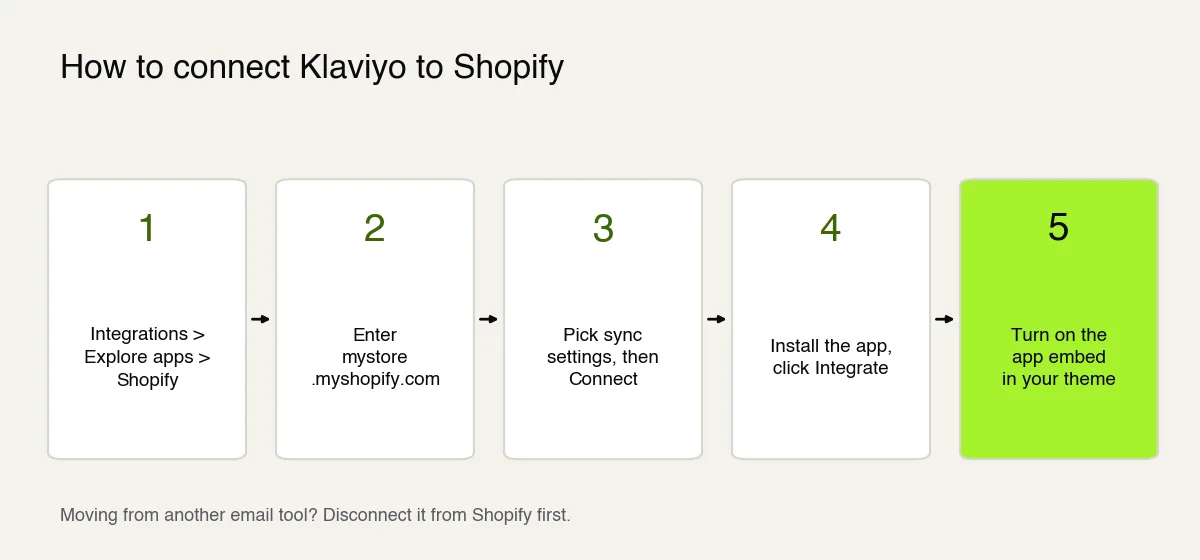
The Klaviyo Shopify integration is set up from inside Klaviyo: open Integrations, add Shopify, enter your myshopify.com address, choose what syncs in each direction, then turn on the Klaviyo app embed in your theme. The connection itself takes minutes. The part most stores skip is checking, in the first two weeks, that every event they plan to build flows on is actually arriving.
Short answer: Connect Shopify from Klaviyo’s Integrations tab, sync Shopify email subscribers to the list that triggers your welcome series, and switch on the app embed so browsing is tracked. Then check the data: in Sendora Lab’s work, order history usually arrives on day one, while browsing events are the ones that go missing.
This guide covers the setup screen by screen, the sync settings we pick for a new store, and what the first weeks looked like in a real account. If you already have Klaviyo connected and want to know which other apps to plug in, read our guide to Klaviyo integrations for Shopify instead.
How to connect Klaviyo to Shopify, step by step
You start in Klaviyo, not in the Shopify App Store, and the whole connection is five steps. Before you begin, if you are moving from another email tool, disconnect it from Shopify first: Klaviyo’s Shopify setup guide warns that leaving the old integration on can send double opt-in emails to your existing subscribers.
- Open the integration. In Klaviyo, go to Integrations, click Explore apps, search for Shopify and click Install.
- Enter your store address. Use the mystore.myshopify.com format, not your custom domain.
- Review the sync settings. Klaviyo shows “Sync data from Shopify” and “Sync data to Shopify” before you connect. You can change them later, but it is easier to decide now (see the next section).
- Connect and install. Click Connect to Shopify, install the Klaviyo app in Shopify, confirm both accounts and click Integrate.
- Turn on onsite tracking. In the Onsite Tracking section, tick “Track behavioral events”, then switch on the Klaviyo app embed in your theme and save.
For step 5, Shopify’s own path is Online Store, Edit theme, then the App embeds icon in the sidebar, where you toggle the Klaviyo embed on and click Save (Shopify Help Center). Back in Klaviyo, a green banner confirms the embed is on.
What the app embed does
The app embed is the small Klaviyo script that runs on your storefront. Without it, Klaviyo still receives orders from Shopify, but it cannot see browsing: Viewed Product and Active on Site only start tracking once the embed is on, according to Klaviyo’s setup guide. That means no browse abandonment flow and no site abandonment flow.
Which Klaviyo Shopify sync settings to choose
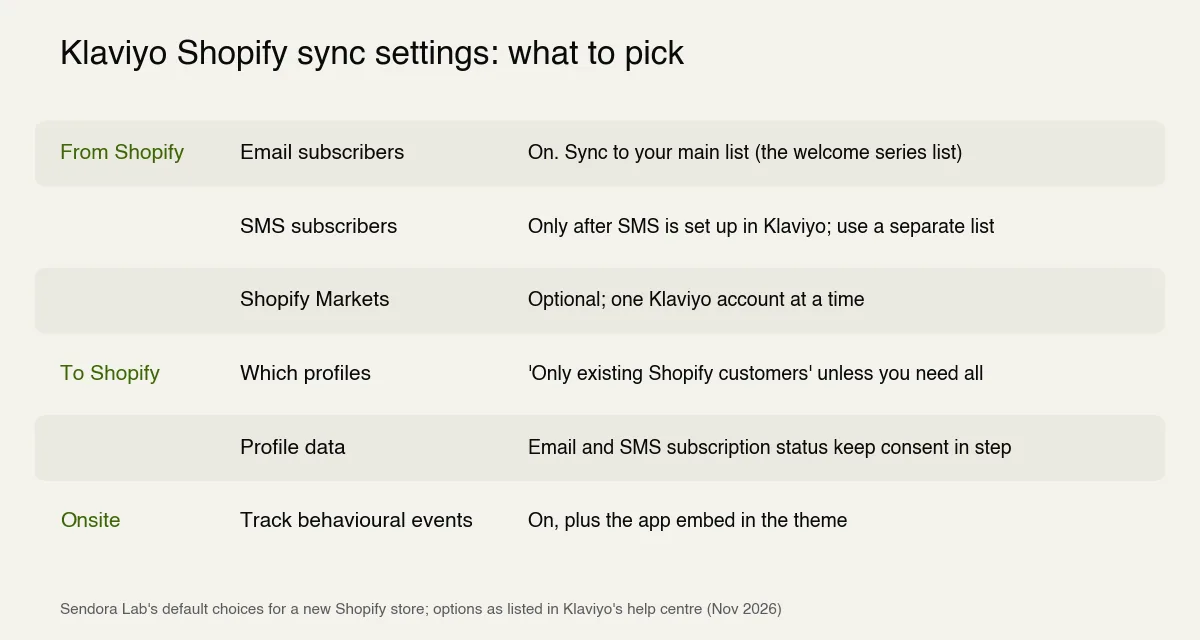
For most new stores, sync Shopify email subscribers into your main list, leave SMS off until SMS is set up, and send only consent and contact data back to Shopify for existing customers. Here is what each option does and what we usually pick.
From Shopify to Klaviyo
- Email subscribers: tick “Sync your Shopify email subscribers to Klaviyo” and choose the list that triggers your welcome series. A list is a static group of people you add to, for example by sign-up; customers who accept marketing at checkout or join through a Shopify form are added to it.
- SMS subscribers: Klaviyo asks you to set up text messaging first, then pick a separate SMS list. SMS consent only syncs when someone subscribes in Shopify for the first time; older SMS subscribers need a separate import.
- Shopify Markets: optional, and it can only be switched on in one Klaviyo account at a time.
From Klaviyo to Shopify
“Sync Klaviyo profiles to Shopify” lets you choose all profiles or only those that already exist in Shopify. Choosing all profiles creates a Shopify customer for every Klaviyo profile, including pop-up sign-ups who never bought, so we pick “only existing” unless there is a clear reason not to. Syncing email and SMS subscription status back keeps consent the same in both tools, which matters if anything else in your stack reads Shopify’s marketing status.
What the Klaviyo Shopify sync brings in, and how much history
The integration brings in orders, customers, your product catalog and up to 15 Shopify and onsite events, starting with the last 90 days and then older history. Klaviyo’s Shopify data reference says the full sync covers up to 10 years by default and can take from a few minutes to several days; you can watch progress in the Historical data section of the integration page.
An event (Klaviyo calls them metrics) is a record of something a person did, such as Placed Order, Checkout Started or Viewed Product. Flows, the automated email sequences, start from these events, so they need to be right before you build anything.
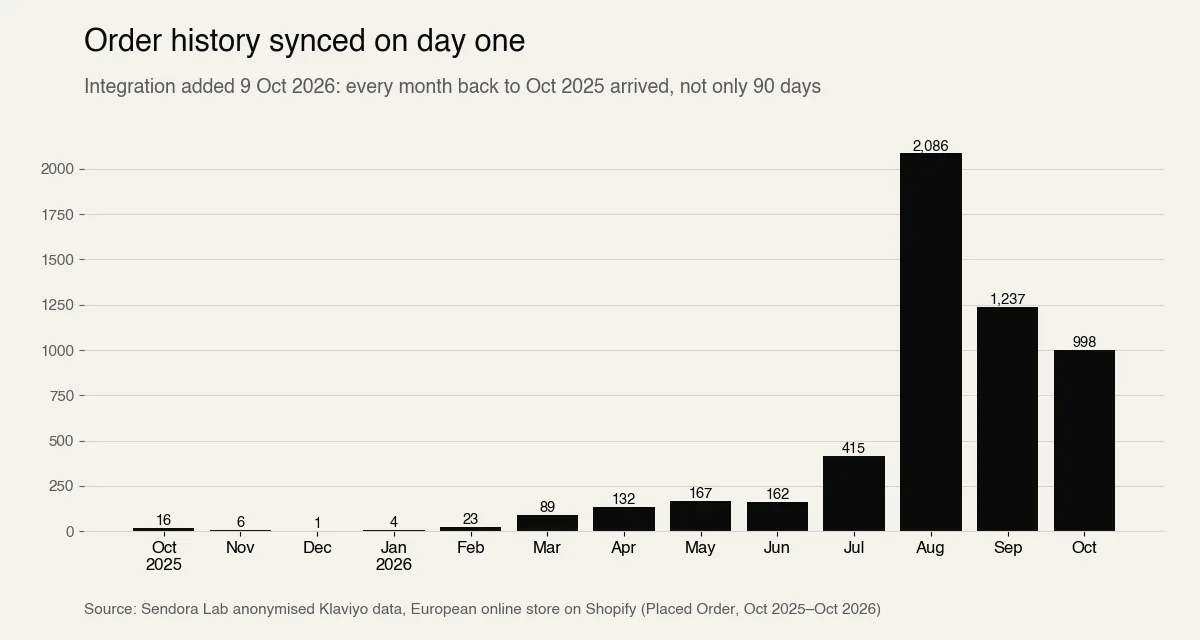
In Sendora Lab’s anonymised Klaviyo data from a European online store on Shopify that connected Klaviyo on 9 October 2026, the order history went back well past 90 days. Placed Order events exist for every month from October 2025 (16 orders) to October 2026 (998 orders), with a peak of 2,086 in August 2026. The core order events were all created in the account in the same minute on 9 October; Submitted Search first appeared about four hours later.
Placed Order or Ordered Product?
Placed Order is recorded once per purchase and Ordered Product once per item in it. Klaviyo recommends Placed Order for triggering and filtering flows and segments, and that is what we use for anything order-based.
Check the Klaviyo Shopify integration in the first two weeks
A green banner tells you the connection exists, not that the data is complete. Compare weekly counts of your key events before you switch on flows that depend on them.
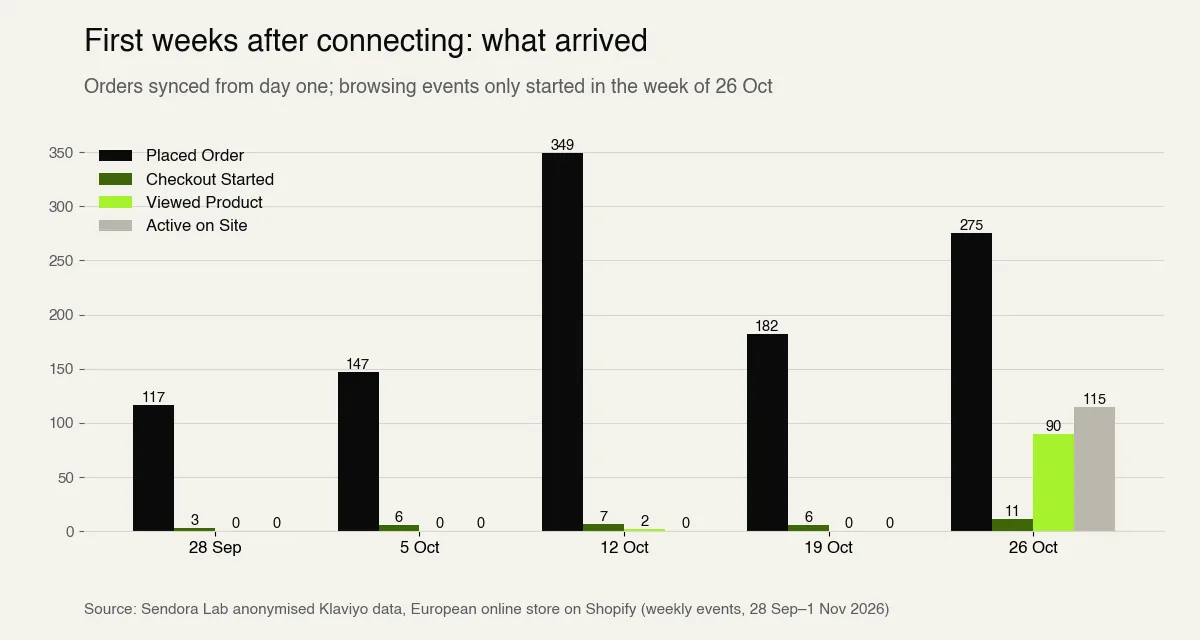
In the same store, orders arrived every week from the start: 147 Placed Order events in the week of 5 October, 349 in the week of 12 October and 275 in the week of 26 October. Browsing did not. Active on Site recorded nothing until the week of 26 October (115 events from 86 people), and Viewed Product recorded 2 events in the week of 12 October and 90 in the week of 26 October. A second Viewed Product metric under the Shopify source recorded nothing at all over 28 September to 1 November. Any browse flow built in the first two weeks would have had almost no one to send to.
Checkout Started was low too: between 3 and 11 events a week against 117 to 349 orders. Klaviyo describes Checkout Started as covering checkouts that end in a purchase as well, so when orders outnumber checkouts many times over, checkout events are missing for a large share of buyers and an abandoned checkout flow will miss them.
A five-minute check we run on every new connection
- Open Analytics, then Metrics, and filter by the Shopify source. Note which events exist.
- For Placed Order, Checkout Started, Added to Cart, Viewed Product and Active on Site, look at the last 14 days by week.
- Orders should be at or below checkouts. If not, check how buyers reach checkout before building the checkout flow.
- If Viewed Product or Active on Site is at zero, confirm the app embed is on in the live theme, then read our guide on fixing Viewed Product tracking.
- If the same event appears under two sources, choose one and build every flow on it.
Two settings can lower browsing numbers on purpose. Klaviyo says it may not track onsite events for visitors in the EU, EEA, UK and Switzerland until they give consent, depending on your Shopify customer privacy settings. Viewed Collection, Submitted Search and Added to Cart also need Shopify Network Intelligence switched on. For a full account review after setup, use our Klaviyo audit checklist.
Why Klaviyo revenue won’t match Shopify
Klaviyo keeps refunded and cancelled orders in its revenue totals, while Shopify subtracts them, so Klaviyo will usually show a higher figure. The Shopify data reference also notes that Klaviyo does not update an event after it is recorded, and that only full refunds create a Refunded Order event.
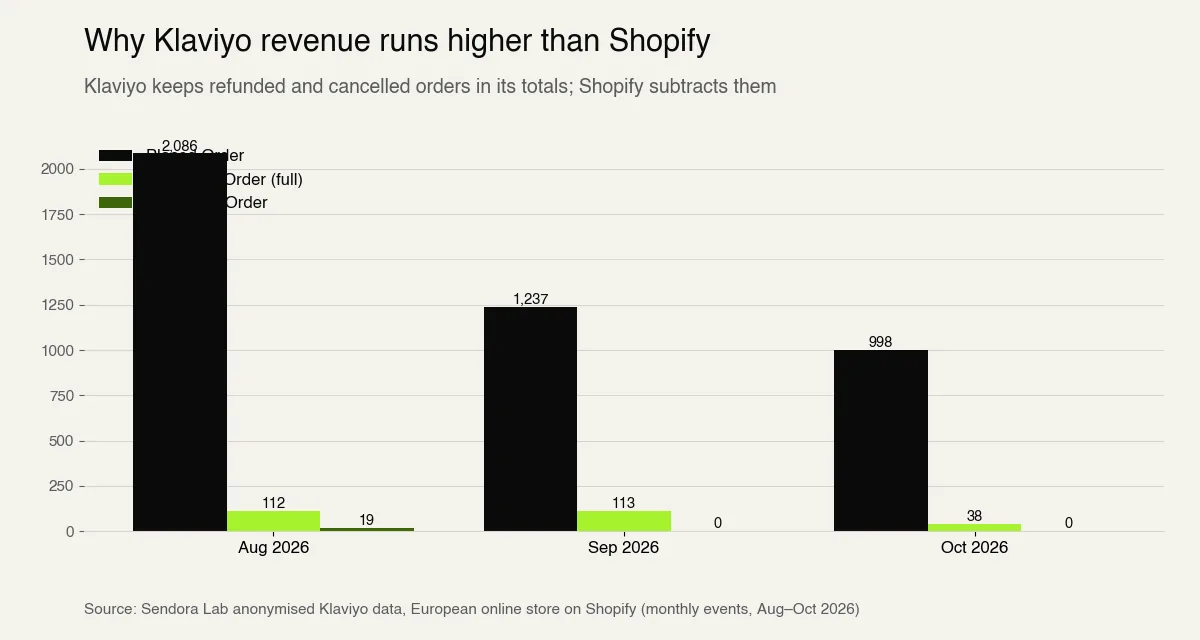
In the same store’s data for August to October 2026, Klaviyo recorded 4,321 Placed Order events, 263 full refunds and 19 cancellations. Klaviyo’s order revenue for those months still includes those refunded and cancelled orders. When you report email revenue, say which tool the number comes from; our guide to Klaviyo attributed revenue explains how to report it honestly. To keep refunded customers out of post-purchase emails, add a “Refunded Order zero times since starting this flow” filter.
Conclusion
The Klaviyo Shopify integration is quick to connect, and the settings you choose decide who lands on your lists and what goes back to Shopify. The real work is the check afterwards: in the store above, orders and history were complete on day one, while browsing events took more than two weeks to appear. Count your events before you build flows on them.
If you want a second pair of eyes on a new connection, Sendora Lab sets up and audits Klaviyo for Shopify stores, including the event check above.
FAQ
How long does the Klaviyo Shopify historical sync take?
Klaviyo syncs the last 90 days first, then older data up to 10 years by default. Klaviyo says the full sync can take from a few minutes to several days, and the integration page shows progress.
Do I need the Klaviyo app embed?
Yes, if you want browse or site abandonment flows. Viewed Product and Active on Site only track once the app embed is switched on in your Shopify theme.
Will Shopify email subscribers sync to Klaviyo automatically?
Yes, if you tick “Sync your Shopify email subscribers to Klaviyo” and choose a list. People who accept marketing at checkout or sign up through a Shopify form are then added to that list.
Should I sync all Klaviyo profiles to Shopify?
Usually not. Syncing all profiles creates a Shopify customer for every Klaviyo profile, including people who never bought; syncing only existing customers keeps Shopify cleaner.
Why is Klaviyo revenue higher than Shopify revenue?
Shopify subtracts refunded and cancelled orders from revenue and Klaviyo does not. In one store we work with, August to October 2026 had 263 full refunds and 19 cancellations still counted in Klaviyo.
Want this set up in your Klaviyo account?
A free 30-minute audit, your account open on screen.
Book a free audit