


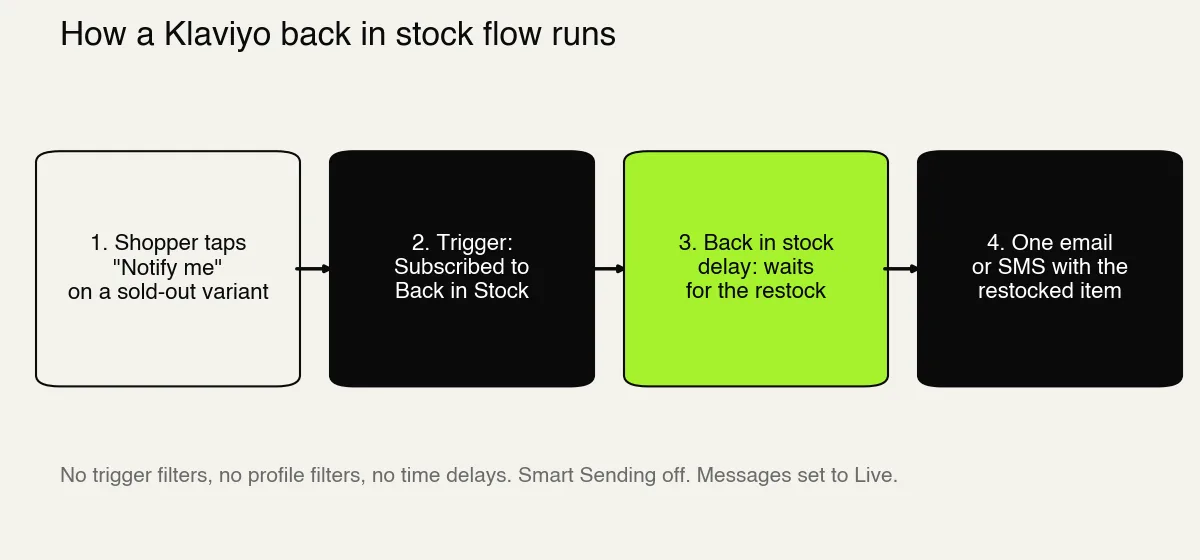
A Klaviyo back in stock flow sends an email or SMS when a sold-out product a shopper asked about is available again. It starts when someone taps “Notify me” on a sold-out item, waits at a special back in stock delay until your store reports new stock, then sends one message. The setup takes minutes; most of the work is in the settings and the checks around it.
Short answer: Build the flow on the “Subscribed to Back in Stock” trigger, put a back in stock delay straight after it, and add one email or SMS with Smart Sending off. Then set your restock minimum and batch size, and make sure Shopify tracks inventory for the product. At Sendora Lab we also check every month that sign-ups are still coming in, because a back in stock flow can stay “live” for years without sending anything.
How a Klaviyo back in stock flow works
The flow has three parts: a trigger, a wait and a message. A flow, in Klaviyo, is an automation that sends messages when a person does something or meets a condition.
The trigger is the Klaviyo metric “Subscribed to Back in Stock”. It is recorded on a profile when a shopper signs up for an alert on an out-of-stock product, through Klaviyo’s back in stock form. Klaviyo’s guide to building the flow says custom metrics cannot trigger this flow, so an app event like “Backorder placed” will not work here.
Next comes the back in stock delay. This is not a normal time delay. People sit in a “Waiting” list at this step until the exact item they asked for is restocked, and your back in stock settings decide who moves on to the message. Klaviyo’s article on how back in stock flows work adds one detail most guides skip: if the message after the delay is in Draft, nobody is added to the waiting list at all.
Which platforms support it
Shopify, BigCommerce, Magento 2, PrestaShop, Salesforce Commerce Cloud and Shopware are supported, plus custom catalogs that carry inventory. The drag-and-drop back in stock form is available for Shopify and BigCommerce; other platforms use a theme snippet that adds a “Notify me when available” button.
How to set up the back in stock flow in Klaviyo
Start from the library template, then strip it back to one delay and one message. Here are the steps we follow on Shopify stores.
- Create the flow. Go to Flows, Create flow, and search the library for “back in stock”. Or choose Build your own.
- Set the trigger. Pick Your metrics, Klaviyo, Subscribed to Back in Stock. Add no trigger filters and no profile filters. If you want to know how those two filter types differ in other flows, see our guide to trigger filters vs flow filters.
- Add the back in stock delay directly after the trigger. Do not add time delays anywhere in the flow.
- Add one message. An email, an SMS, or both side by side. Turn Smart Sending off so every waiting subscriber gets the alert. Our article on Klaviyo Smart Sending explains when that setting helps and when it blocks.
- Show the right product. Use a catalog lookup on the event’s variant ID, so the message shows the item’s current title, image, price and link at send time. Klaviyo lists the exact tags in how to configure back in stock alert emails. Link to the variant, not just the product, so the shopper lands on the size or colour they wanted.
- Set the message to Live and turn the flow on. Then add the back in stock form to your product pages.
Shopify inventory settings that matter
Klaviyo does not count stock itself. It reads it from Shopify, so the product must track inventory. If “Continue selling when out of stock” is ticked, the item never shows as sold out and the form has nothing to attach to. Shopify’s help page notes that this option only exists when inventory tracking is on, and lists pre-orders and stock that is on its way among the reasons to use it.
Back in stock settings: restock minimum and batches
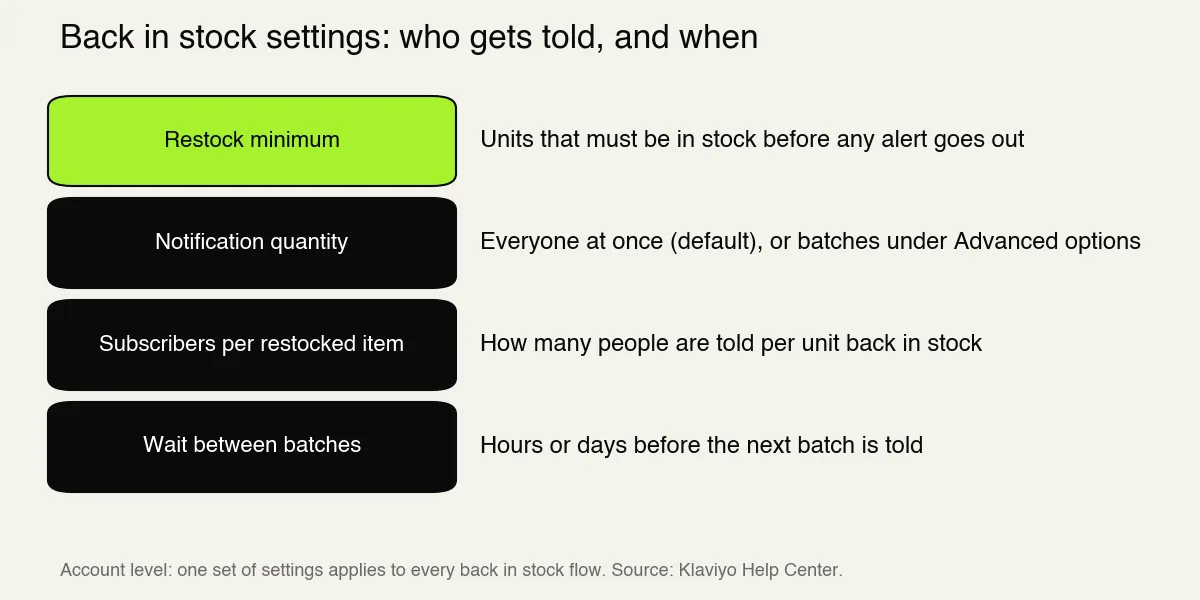
The settings decide how many people hear about a restock and how fast. They sit at account level, so one set applies to every back in stock flow you run.
You find them under Settings, Other, Back in stock settings, or by clicking Edit on the delay step. The tab only appears after the first “Subscribed to Back in Stock” event is recorded. There are four controls:
- Restock minimum: how many units must be in stock before any alert goes out.
- Notification quantity: tell everyone at once (the default), or send in batches.
- Subscribers to notify per restocked item: how many people each unit should cover.
- Wait between batches: hours or days before the next group is told.
When to use batches
Use batches when demand is far bigger than the restock. If 200 people wait for a size and 20 units arrive, telling all 200 at once means 180 people click through to a sold-out page again. Batches keep the promise for the people you do tell. Klaviyo also says it cannot check stock again before a second message, so a follow-up “last chance” email can arrive after the item has sold out. That is why we send one message, not a sequence.
What one real back in stock flow shows
A back in stock flow can look healthy in the flow list and still send nothing. Here is one account we checked.
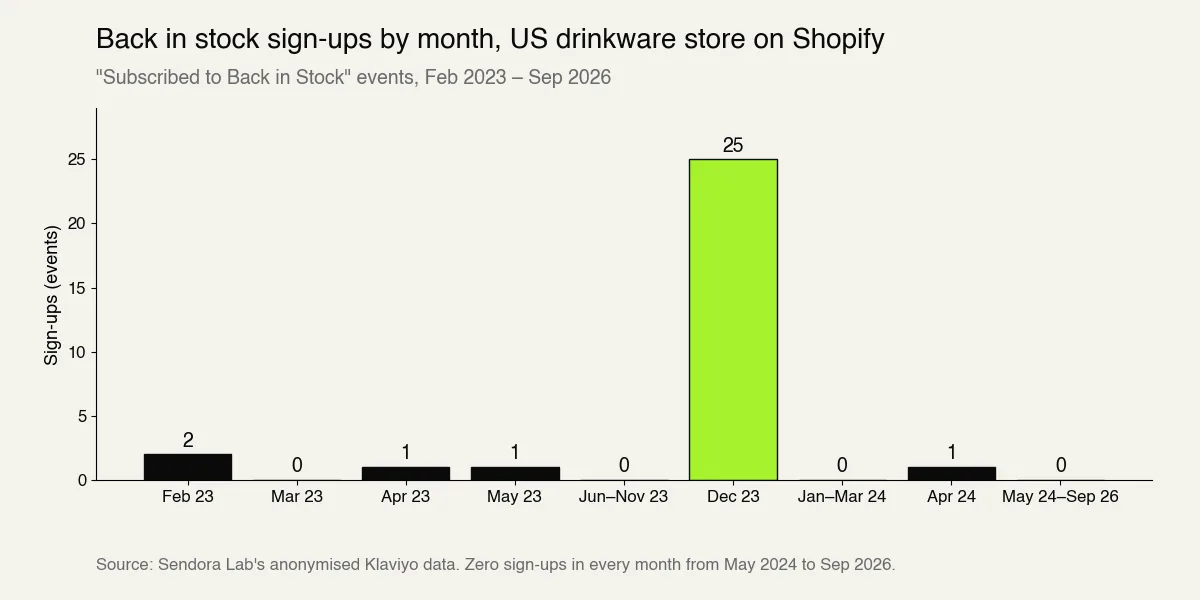
In Sendora Lab’s anonymised Klaviyo data from a US drinkware accessories store on Shopify, the back in stock flow has been live since April 2023. It has one step after the delay: an SMS with Smart Sending off and quiet hours on, which pulls the product title, image and link from the Shopify catalog by variant ID. The setup follows Klaviyo’s guidance closely.
The sign-ups tell a different story. The account recorded 2 “Subscribed to Back in Stock” events in February 2023, 1 in April 2023, 1 in May 2023, 25 in December 2023 (from 23 profiles) and 1 in April 2024. From May 2024 to September 2026 it recorded none. The flow report shows no messages sent from this flow between 15 November 2023 and 30 September 2026.
The data alone cannot say why. Possible causes are the ones on our checklist below: the items never came back to the restock minimum, the form stopped showing on product pages, or people signed up with an email address while the flow only sends SMS. The lesson is simpler than the cause: a flow switched on is not a flow working. We add a monthly look at the “Subscribed to Back in Stock” metric to every account audit.
Email, SMS or both
Send the channel the shopper gave you. An SMS-only flow can only reach people who gave a phone number and agreed to texts. If your form asks for email first, put an email in the flow too, or most of your waiting list will never hear back. If you are new to texting customers, read how to start SMS marketing before adding SMS to this flow.
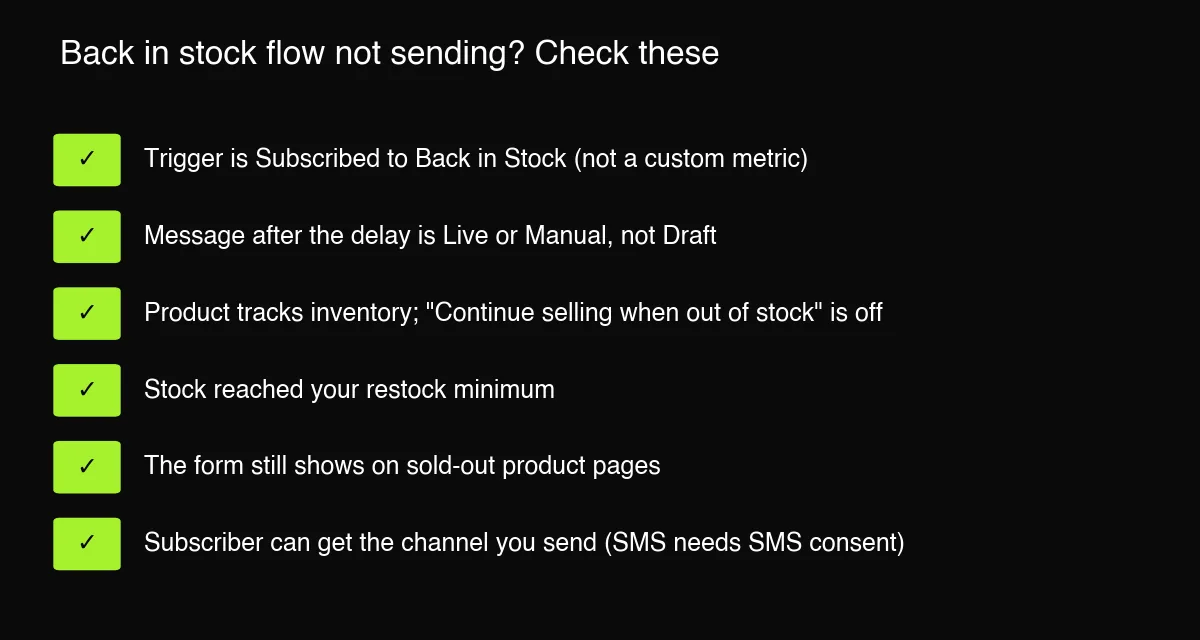
Back in stock flow not sending? Six checks
Most broken back in stock flows fail on settings, not on copy. Work through these in order.
- The trigger is “Subscribed to Back in Stock”, not a custom or app metric.
- The message after the delay is Live or Manual. Draft means nobody even joins the waiting list.
- The product tracks inventory in Shopify, and “Continue selling when out of stock” is off.
- Stock has reached your restock minimum. A minimum of 10 with a restock of 6 sends nothing.
- The form still appears on sold-out product pages after theme changes.
- The subscriber can receive the channel you send: SMS needs SMS consent.
To see who is waiting, click the delay step and open View details in the Performance section. Adding past profiles rarely helps here, because the flow runs on the trigger event. For people already in a back in stock report, Klaviyo suggests a one-off campaign instead.
Conclusion
A Klaviyo back in stock flow is one of the simplest flows to build: one trigger, one delay, one message. What makes it pay is the work around it: inventory tracking in Shopify, a sensible restock minimum, batches when demand beats supply, and a monthly check that sign-ups are still arriving. Pair it with a solid abandoned cart flow and you cover both shoppers who can buy now and shoppers who are waiting.
Want us to check your back in stock and other flows? See our Klaviyo email marketing services, or book a free audit. When an item stays in stock but gets cheaper, a Klaviyo price drop flow covers that case.
FAQ
What triggers a Klaviyo back in stock flow?
The Klaviyo metric “Subscribed to Back in Stock”, recorded when a shopper signs up through the back in stock form. Custom metrics cannot trigger this flow.
Should I add time delays or filters to the flow?
No. Klaviyo’s guidance is no trigger or profile filters and no time delays. The back in stock delay already holds each person until their item is restocked.
How do I stop everyone being told about a tiny restock?
Set a restock minimum, then use batches under Advanced options: choose how many subscribers to notify per restocked unit and how long to wait between batches.
Why is my back in stock flow live but not sending?
Check that the message is not in Draft, that Shopify tracks inventory with “Continue selling when out of stock” off, that stock reached the restock minimum, and that the form still shows on sold-out pages.
Can I send more than one back in stock message?
You can, but Klaviyo cannot recheck stock before a second message, so it may arrive after the item sold out again. We send one message.
Want this set up in your Klaviyo account?
A free 30-minute audit, your account open on screen.
Book a free audit