


The Okendo Klaviyo integration sends your review data into Klaviyo as events and profile data, so you can send review requests from Klaviyo, show reviews in emails and segment people by what they reviewed. You connect it in a few clicks from Okendo’s settings. The part most stores get wrong comes after that: the review request flow has to be built, switched on and started from Okendo, or nothing goes out.
Short answer: In Okendo, go to Settings > Integrations > Klaviyo, click Connect and approve the permissions. Then build a Klaviyo flow triggered by “Eligible for Okendo Review Request”, set its emails to Live, and start a Klaviyo sequence in Okendo’s Mail tab. At Sendora Lab we check that last step first, because a connected integration with a draft flow sends nothing.
What the Okendo Klaviyo integration does
The integration pushes Okendo activity into Klaviyo in real time. Each customer action becomes an event on their Klaviyo profile, and events can start flows or define segments.
A flow is an automated series of emails or texts that Klaviyo sends when something happens, such as a placed order or a submitted review. A segment is a group of profiles that updates itself based on rules you set.
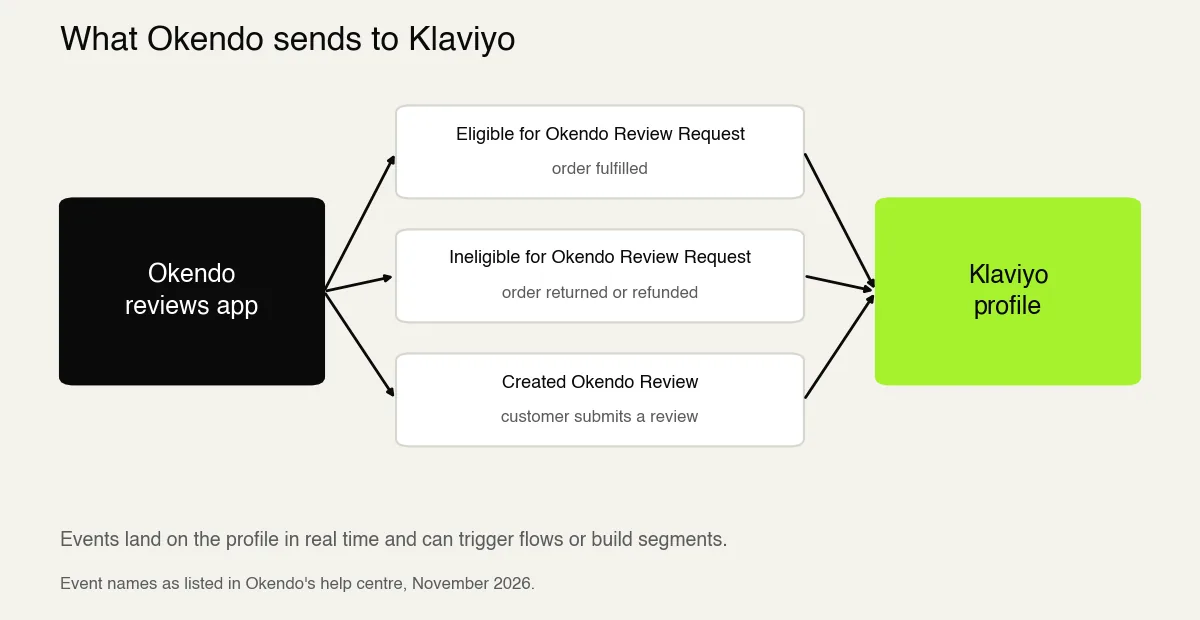
For reviews, Okendo sends three events, according to its reference on data sent to Klaviyo (checked November 2026):
- Eligible for Okendo Review Request: fires when an order is fulfilled. It carries the products, each with a review link and links for one to five stars.
- Ineligible for Okendo Review Request: fires when an order is returned or refunded.
- Created Okendo Review: fires when a customer submits a review. It carries the rating, title, body, product, sentiment, image and video counts, and any coupon or loyalty points given for the review.
Okendo also sends loyalty, referral, quiz and survey data if you use those products. This guide sticks to reviews.
How to connect Okendo to Klaviyo
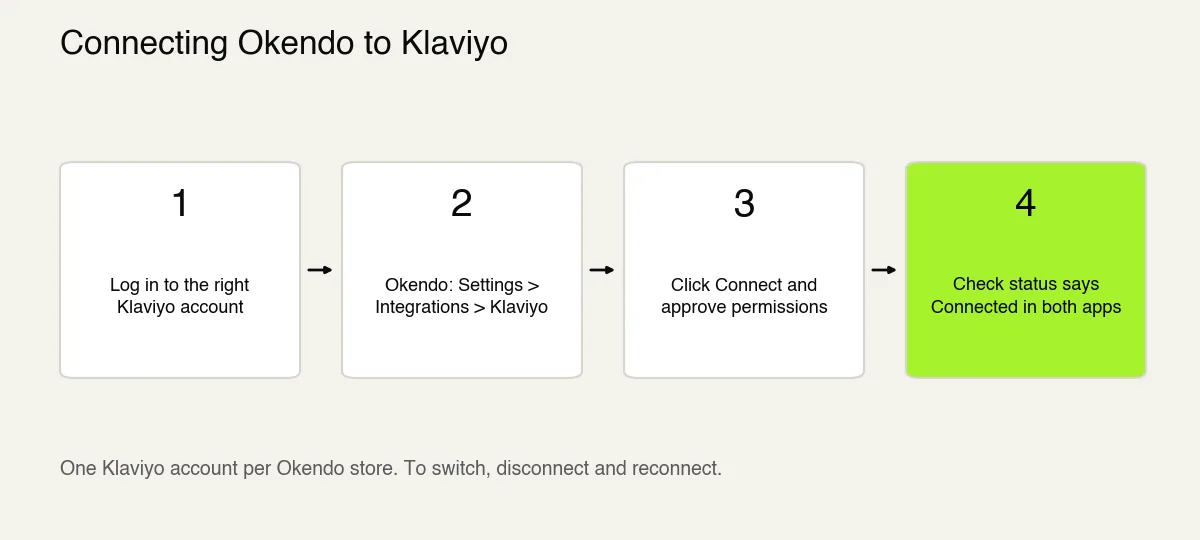
Connecting takes about a minute and starts on the Okendo side. Before you begin, log in to the Klaviyo account you want to use in the same browser, or the wrong account may appear in the list.
- In Okendo, open Settings > Integrations > Klaviyo.
- Click Connect and, if you have more than one Klaviyo account, pick the right one.
- Review the permissions and approve them.
- Check that Okendo shows Connected and that Okendo appears in your Klaviyo integrations.
Okendo supports one Klaviyo account per store. To move to another account you disconnect and reconnect, as its setup guide explains. Disconnecting stops new data but does not delete your flows, segments or past events in Klaviyo. Klaviyo access is tied to your Okendo plan, and some plans list it as an add-on, so check your plan first.
If you run other apps alongside Okendo, our guide to Klaviyo integrations for Shopify shows how to check each one is sending clean data.
How to build the Okendo review request flow in Klaviyo
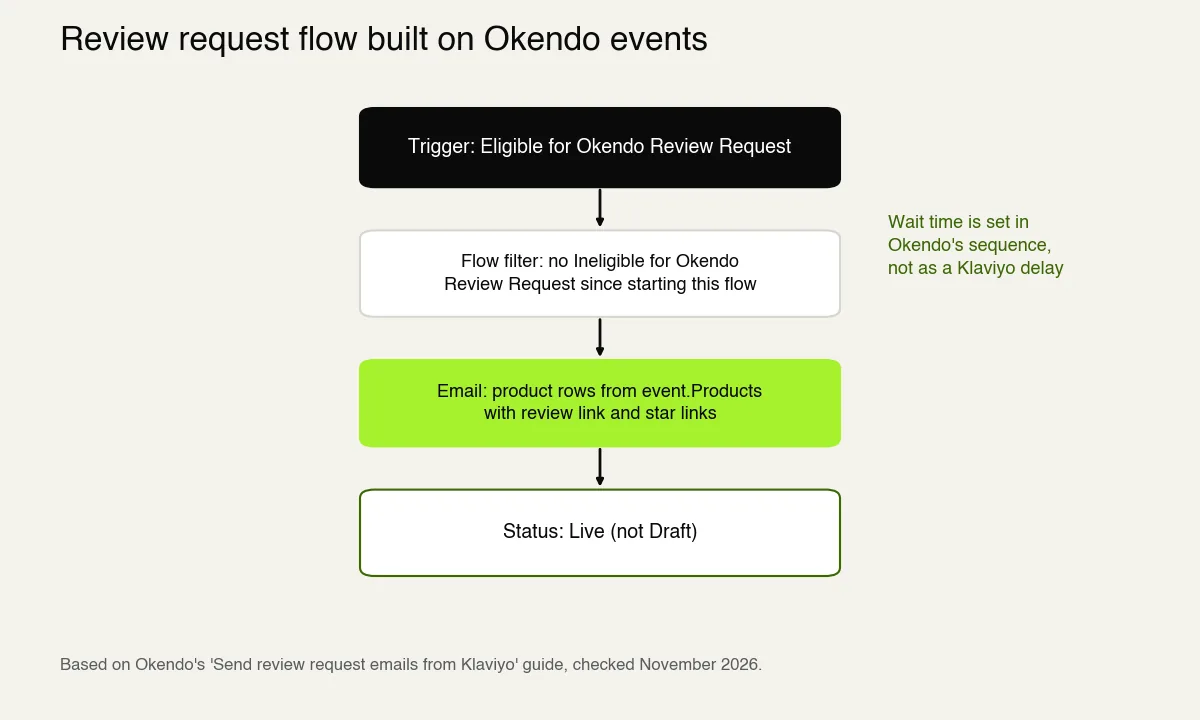
The review request is a Klaviyo flow triggered by Okendo’s eligibility event, with Okendo deciding when that event fires. Okendo now offers a Klaviyo flow template for this; the manual build below matches its guide to sending review requests from Klaviyo.
Trigger and filter
Set the trigger to Eligible for Okendo Review Request. Add a flow filter on Ineligible for Okendo Review Request so anyone whose order was returned or refunded after entering the flow drops out before the email sends.
A flow filter is checked before every step, not only at entry, which is what makes it work here. We explain the difference in trigger filter vs flow filter.
The email
Build a table block with dynamic rows that repeat over event.Products, so each product in the order gets its own image, name and review link. To cap the number of products, use event.Products|slice:'3'.
By default each star links to a pre-filled rating. Okendo’s guide suggests pointing all five stars at the plain review link so the customer picks their own rating in the form. A single button linking to the first product’s review form works well under the table.
Timing lives in Okendo
Do not add a Klaviyo time delay for the main wait. In Okendo’s Mail tab, choose New Sequence > Klaviyo, then set the start date, whether to wait from fulfilment or delivery, separate wait times for domestic and international orders, and how to sort products. Click Start. The flow then sends when Okendo fires the eligibility event.
Why a connected integration can still send no review requests
Connecting Okendo only moves data. Reviews only come in when three things are true at once: the eligibility event fires, the Klaviyo flow’s emails are Live, and the Okendo sequence has been started.
We see the second one missed most often. In Klaviyo, a flow email set to Draft queues no one, as Klaviyo’s guide to flow message statuses states. The trigger keeps firing, the flow looks set up, and nobody receives anything.
Here is a real case. In Sendora Lab’s anonymised Klaviyo data from a Polish online store on Shopify, a review request flow was created on 19 February 2026 and was still in Draft when we checked on 7 November 2026. From February to September 2026 the store logged 341 “Ready to review” events, the signal Klaviyo’s own reviews feature uses to start a review request. It received one review in that time, in February. This store uses Klaviyo’s own review events rather than Okendo, but the failure is the same with any review app: the events were there and the flow never sent.
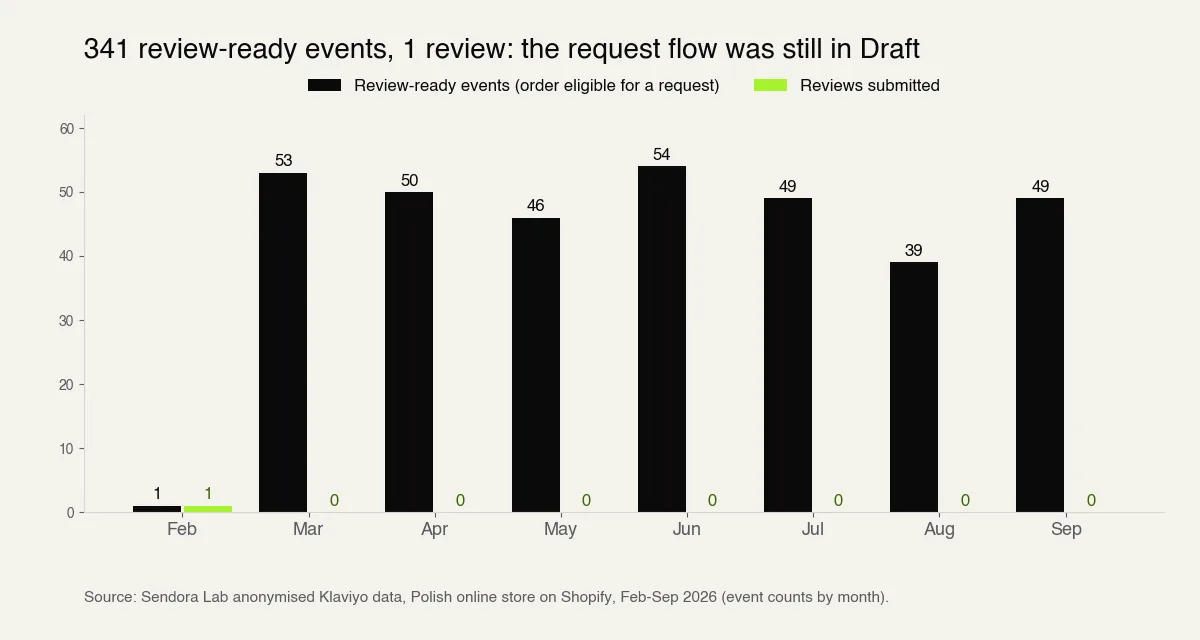
When we audited 22 client Klaviyo accounts for this post on 7 November 2026, none had Okendo connected, so we have no Okendo response rates of our own to share. The check above works for Okendo all the same. Once a month, compare the number of Eligible for Okendo Review Request events with Created Okendo Review events. If the first is growing and the second is flat, open the flow and check its status before you touch the copy.
This sits on the checklist in our Klaviyo audit checklist, under flows that exist but do not send.
How to use Okendo review data in Klaviyo segments
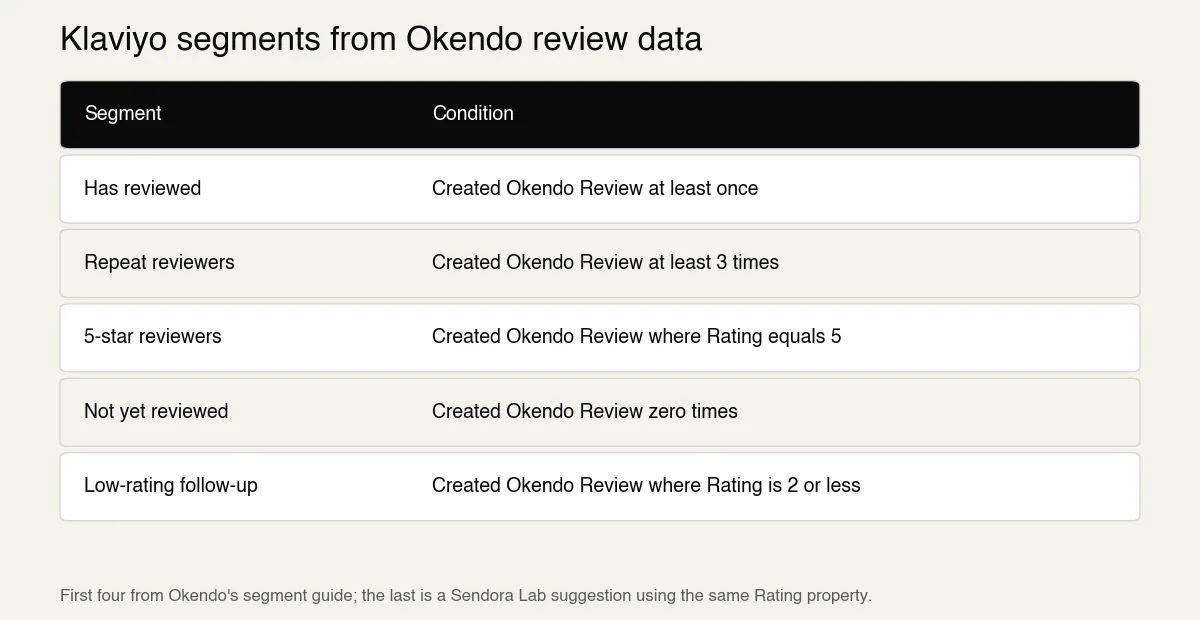
Every Created Okendo Review event lands on the profile, so you can segment by whether, how often and how well someone reviewed. Okendo’s segment guide gives four starting points:
- Has reviewed: Created Okendo Review at least once.
- Repeat reviewers: Created Okendo Review at least three times.
- 5-star reviewers: Created Okendo Review at least once where Rating equals 5.
- Not yet reviewed: Created Okendo Review zero times.
We add a fifth: anyone with a review where Rating is 2 or less. Send that group to customer service, not to a promotion. A low rating followed by a discount email reads as if nobody read the review.
5-star reviewers are good candidates for a referral ask or early access to a launch. Okendo notes that new segments can take time to fill, so wait before pointing a campaign at one. For more segment ideas built on order data, see purchase behaviour segmentation.
Where else Okendo reviews fit in your Klaviyo flows
Beyond the request itself, review content works best where a shopper is still deciding. Okendo has guides for adding a review block or a star rating summary to abandoned cart emails, which is the most natural place: the customer has picked a product and wants reassurance.
After a review comes in, a short follow-up triggered by Created Okendo Review can thank the customer and, if your Okendo settings give one, show the coupon code from the event. Keep this separate from your post-purchase flow so a customer does not get a thank-you and a review request on the same day. Our abandoned cart flow guide covers where social proof sits in that sequence.
Conclusion
The Okendo Klaviyo integration is quick to connect, and the value comes from what you build on it: a review request flow that is actually Live, an Okendo sequence that is started, and segments that treat happy and unhappy reviewers differently. Check event counts against reviews once a month and you will catch a silent flow in weeks, not seasons.
If you want a second pair of eyes on your review and post-purchase flows, Sendora Lab builds and audits these in Klaviyo every week. See our email and retention services.
FAQ
Where do I connect Okendo to Klaviyo?
In the Okendo admin, under Settings > Integrations > Klaviyo. Click Connect, choose the Klaviyo account and approve the permissions. Okendo supports one Klaviyo account per store.
Which Okendo event triggers the review request flow?
Eligible for Okendo Review Request, which Okendo fires for fulfilled orders; the wait before the email is set in the Okendo sequence. Pair it with a flow filter on Ineligible for Okendo Review Request to skip returned or refunded orders.
Why is my Okendo review request flow not sending?
Check that the flow’s emails are set to Live, not Draft, and that you started a Klaviyo sequence in Okendo’s Mail tab. A Draft email in Klaviyo queues no recipients, even when the trigger fires.
Do I set the review request delay in Klaviyo or in Okendo?
In Okendo. The sequence settings let you wait from fulfilment or delivery and set separate wait times for domestic and international orders.
Does disconnecting Okendo delete my Klaviyo data?
No. Disconnecting stops new data from reaching Klaviyo, but existing flows, segments and past events stay in your account.
Want this set up in your Klaviyo account?
A free 30-minute audit, your account open on screen.
Book a free audit