


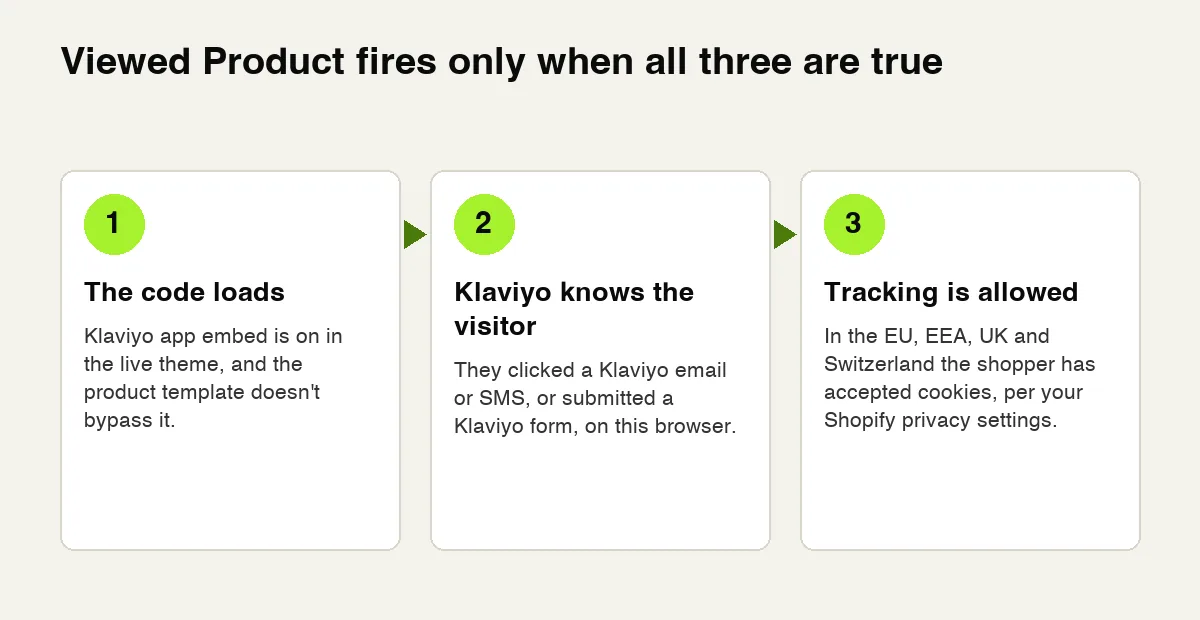
If Klaviyo’s Viewed Product event isn’t tracking, one of three things is almost always true: the Klaviyo app embed isn’t loading on your product pages, the shopper isn’t an identified visitor, or a cookie banner is blocking tracking for that visitor. Check them in that order and most stores find the cause in under ten minutes. Below is the exact order I use, plus a quick test that tells you whether the problem is tracking or your browse flow.
Why Klaviyo Viewed Product is not tracking
Viewed Product only fires when the code loads, Klaviyo already knows the visitor, and tracking is allowed. If any one of those fails, the event stays silent and your browse abandonment flow has nothing to trigger on.
On Shopify, Viewed Product comes from Klaviyo’s own onsite script, which the Klaviyo app embed adds to your theme. Added to Cart, Viewed Collection and Submitted Search travel a different route, through a Shopify pixel, as Klaviyo’s Shopify onsite tracking guide explains. That split matters, because it means one event can break while the others keep working. Our guide to Klaviyo integrations for Shopify lists every event the integration syncs.
Step 1: confirm the event is really missing
Go to Analytics, then Metrics, and open Viewed Product. If the chart is flat at zero, tracking is broken. If it shows events, the problem is more likely your flow’s trigger or filters.
Use the cart check
Here is a check none of the usual guides mention. Put Viewed Product next to Added to Cart for the same months. Almost nobody adds a product to the cart without opening its page first, so if carts are being tracked and product views aren’t, the Shopify pixel is working and the app embed is not.
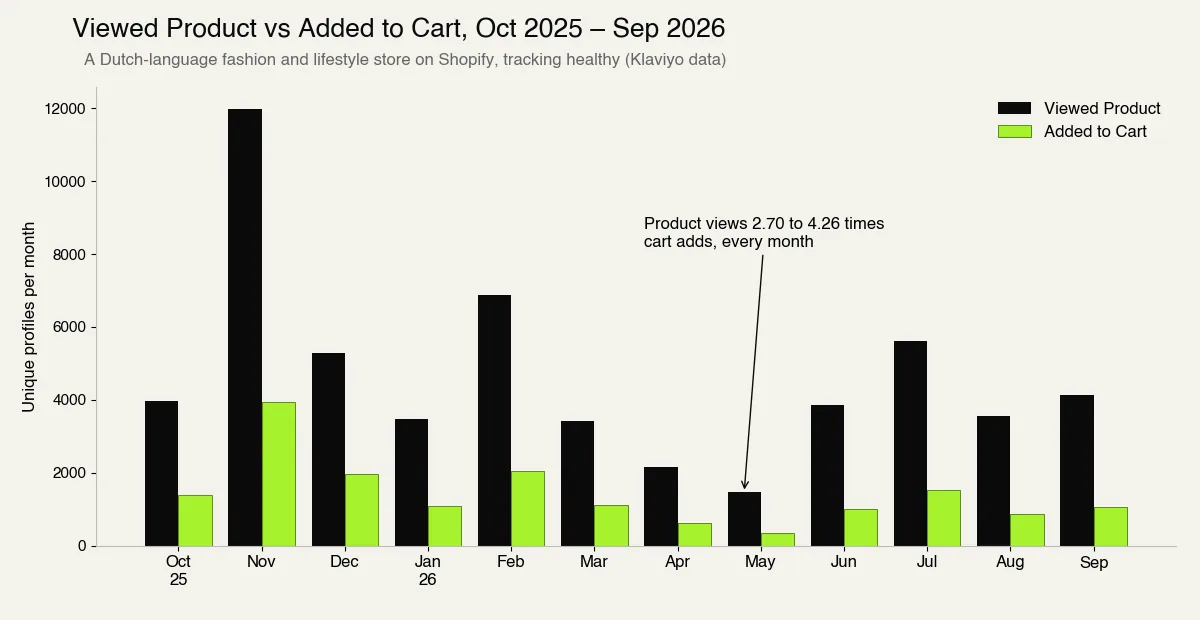
Here is what healthy tracking looks like. In Sendora Lab’s anonymised Klaviyo data from a Dutch-language fashion and lifestyle store on Shopify (October 2025 to September 2026), more profiles viewed a product than added one to the cart in every single month. In October 2025, 3,965 unique profiles had a Viewed Product event and 1,393 had an Added to Cart event. In September 2026, it was 4,138 against 1,048.
Across those twelve months, the store had between 2.70 and 4.26 times as many product viewers as cart adders. Your own ratio will differ, but the direction should not. If Viewed Product is zero, or lower than Added to Cart, while carts keep coming in, the Shopify pixel is doing its job and Klaviyo’s onsite script is not. Your browse abandonment flow then has no trigger to work with, however good its emails are.
Step 2: check the app embed and your product templates
The usual causes are the app embed and the product template. Fix the embed first, then make sure every type of product page actually loads it.
Turn the Klaviyo app embed back on
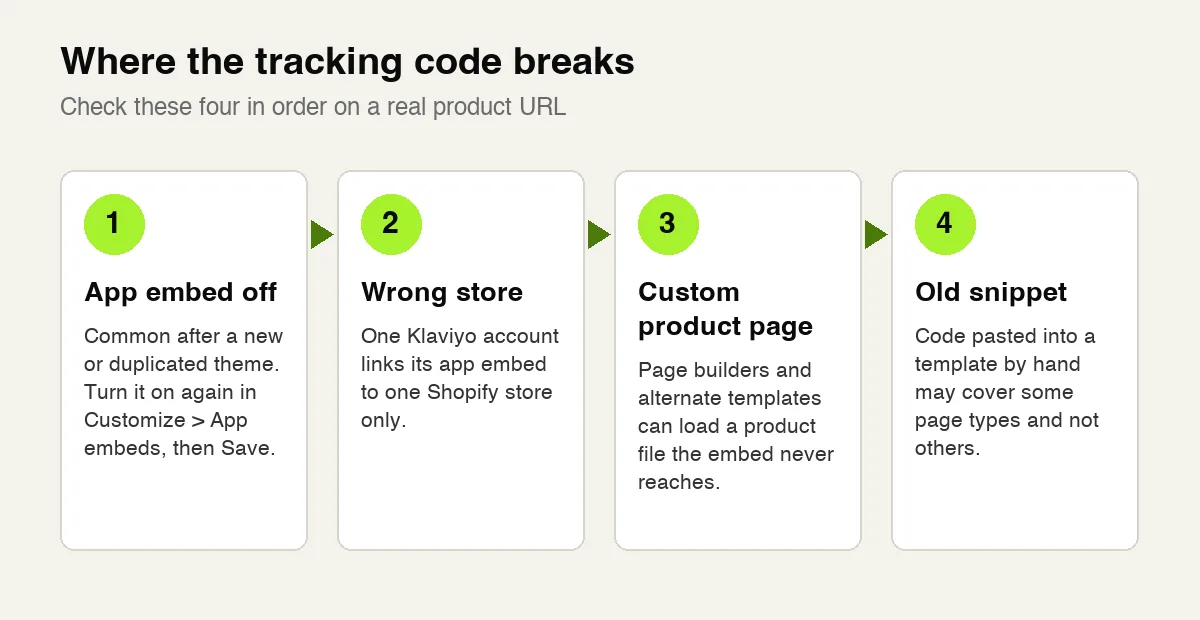
In Klaviyo, open Integrations, then Shopify, then the Onsite tracking section, and click to turn the embed on. Shopify opens your theme’s App embeds tab. Toggle Klaviyo on and click Save. Back in Klaviyo, you should see a green banner confirming it.
Two details catch people out. A newly published theme needs the embed switched on again, so this often breaks after a redesign or a theme update. And one Klaviyo account can link its app embed to only one Shopify store, which matters if you run separate stores for different countries. Our guide to multilingual email marketing compares the set-ups.
Check custom product pages
Page builders and alternate product templates can load a different product file from your theme’s default. In one Klaviyo Community case, Added to Cart worked but Viewed Product did not, and the fix was adding Klaviyo’s code to the page builder’s own product template. Open a product page built with your page builder, view the page source, and search for static.klaviyo.com. If it isn’t there, that template isn’t loading Klaviyo.
Step 3: check who Klaviyo can see
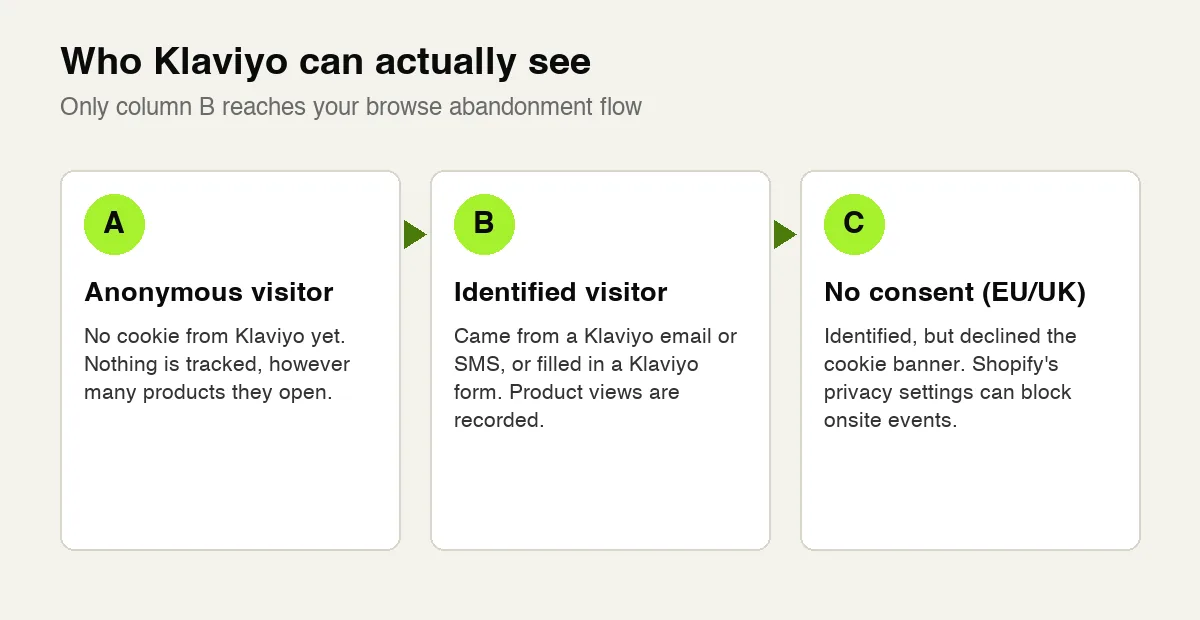
Klaviyo only records browsing for visitors it can identify. An anonymous shopper can open fifty products and Klaviyo will record none of them.
According to Klaviyo’s web tracking documentation, a browser becomes known when the visitor clicks through from a Klaviyo email or SMS, or submits a Klaviyo form. That is why testing in your own everyday browser can be misleading. You may be identified on your laptop and anonymous on your phone, so one device shows events and the other doesn’t.
Cookie banners in the EU and UK
This is the cause most often missed by stores selling into Europe. Klaviyo says it may not track onsite events for visitors in the EU, EEA, UK and Switzerland who haven’t given consent, based on your Shopify customer privacy settings. Shopify’s own privacy settings guide says that where the cookie banner is active, non-essential data is collected only after consent, which can reduce the data available for marketing.
So a store with a strict banner and a high decline rate will see fewer Viewed Product events than its traffic suggests. That is working as intended, not a bug. Don’t try to get around it. Instead, grow the share of identified visitors with a good signup form and make sure your banner gives people a clear reason to accept.
Step 4: test the fix end to end
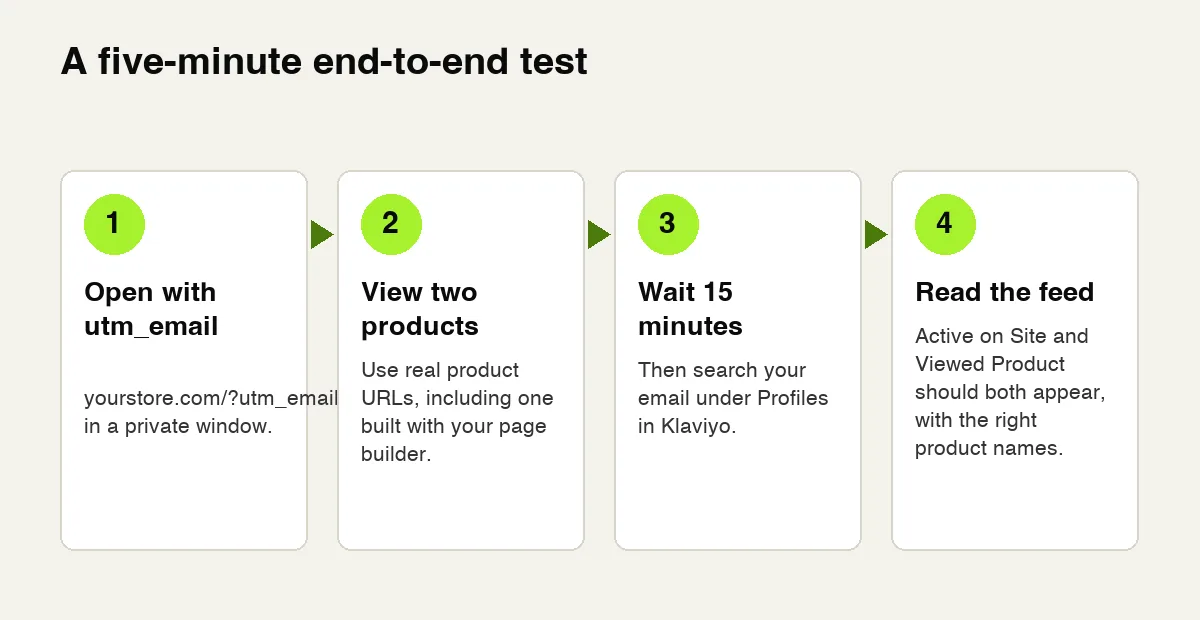
A five-minute test with a known email tells you whether Viewed Product is fixed. Do it in a private window so old cookies don’t hide the result.
- Open your store with
?utm_email=you@yourdomain.comadded to the homepage URL, then reload. - Open two product pages, including one built with your page builder if you use one.
- Wait about 15 minutes, which Klaviyo recommends because events can be delayed.
- Search your email under Profiles. The activity feed should show Active on Site and Viewed Product, with the correct product names.
If both events appear, tracking is fixed. If your browse flow still doesn’t send, look at the flow itself: it should be live, triggered by Viewed Product, and its filters shouldn’t exclude everyone. A common example is a “has not placed an order” filter set to all time. Smart Sending can also hold back emails for people who were just emailed, so some silence is normal. Our 20-minute Klaviyo audit covers the flow checks in more detail.
Conclusion
When Klaviyo Viewed Product is not tracking, work through it in order: confirm the metric is flat, compare it with Added to Cart, check the app embed and every product template, then check identification and consent. In a store where tracking works, product views outnumber cart adds every month, so one chart tells you which side is broken.
If your browse flow, abandoned cart flow or tracking setup needs a second pair of eyes, see how we run Klaviyo email marketing for Shopify brands, or book a free audit. If you have just connected your store, run the checks in our Klaviyo Shopify integration guide. If your store sends its own events, see how the Klaviyo custom events API works.
Want this set up in your Klaviyo account?
A free 30-minute audit, your account open on screen.
Book a free audit